Custom Audio Effects
Audio effects let you modify or analyze voice audio before it is transmitted or played back. You can use the effects included with the SDK or create your own by deriving from UOdinCustomEffect. This guide introduces the available effects, demonstrates sample processing with a volume effect, and explains how to move heavier work off the audio thread.
You can create and configure the built-in effects using Blueprints. Implementing your own audio processing requires C++, including worker-thread processing with UOdinCallbackEffect. You can expose your custom effect's settings and construction functions to Blueprints so the rest of your project can use it without additional C++ code.
This guide assumes you already have a working ODIN integration. See the setup guide if you need to set one up first. To compile your own effect, use a C++ project and add the ODIN module dependencies described in the C++ integration guide.
Effects included with the SDK
The SDK's Effects directory contains the following classes. Choose an existing effect when it already provides the processing you need.
| Class | Description |
|---|---|
UOdinVolumeEffect | Changes sample amplitude using linear or decibel gain. A near-zero gain clears the samples and marks the block silent. |
UOdinMuteEffect | Marks audio silent while MuteFlag is Set and clears the samples. Samples can optionally be left as-is. Unset and None preserve the incoming state, including silence set by an earlier effect. |
UOdinRmsEffect | Measures the samples' root mean square level in decibels relative to full scale (dBFS), for example for a voice volume level meter. |
UOdinActivityEffect | Reports changes in the incoming silence flag through a game-thread event. Place it after effects whose silence decisions you want to observe. |
UOdinCloneEffect | Delivers copies of audio to the game thread for recording, analysis, or API requests. Changes to the copy do not change the pipeline audio. |
UOdinCallbackEffect | Processes copies on a worker thread and writes completed results back into later pipeline blocks. Suitable for a voice changer or other processing that replaces the audio. |
UOdinCustomEffect | Abstract base for your own effects. Override CustomEffect for short processing that runs directly in the pipeline. |
The pipeline also supports native VAD for voice activity detection and gating, APM for audio enhancement and echo cancellation, and VI for voice isolation. These are inserted through their dedicated pipeline nodes.
Define the effect
The following code is a simplified version of the built-in UOdinVolumeEffect. When creating your own effect, give it a unique name and replace ODIN_API with your project's module API macro. Update the class name, constructor, filenames, includes, and generated-header name together so they refer to your new class.
CustomEffect() overrides the callback declared by UOdinCustomEffect.
ConstructVolumeEffect() creates an effect object and sets its initial gain.
SampleScale, ScaleExponent, and VolumeLog10 control how the gain is calculated. The base class initializes UserData.
In linear mode, the multiplier is SampleScale raised to ScaleExponent. With VolumeLog10 enabled, it is 10^(SampleScale / 20), and ScaleExponent is ignored.
| Mode | Sample Scale | Scale Exponent | Result |
|---|---|---|---|
| Linear | 1.0 | 1.0 | Unchanged amplitude |
| Linear | 0.5 | 1.0 | Half amplitude |
| Linear | 0.5 | 2.0 | Quarter amplitude (0.5² = 0.25) |
| Decibels | 0.0 | Ignored | Unchanged amplitude |
| Decibels | -6.0 | Ignored | Approximately half amplitude |
ConstructVolumeEffect() defaults to a scale of 1.0.
Implement the effect
ODIN calls CustomEffect() when the pipeline processes an audio block.
InSamples is a temporary view of the sample buffer, its elements can be modified in place. The pipeline format is 20 ms of interleaved stereo at 48 kHz: 960 frames, or 1920 floats, per block, regardless of the encoder's input or decoder's output format. Do not access the view or the silence pointer after the callback returns.
The callback runs inline on the thread processing the encoder or decoder audio. Slow work stalls the audio and subsequent effects. Keep processing fast, dispatch UI or gameplay work to the game thread, and use the async approaches below for API requests or heavier processing.
Read and write the silence flag
*bIsSilent is a writable flag describing whether the current block is considered silent. Read it to decide whether your effect needs to process the block. Set *bIsSilent = true to mark the block silent for subsequent processing. Keep an earlier effect's silence value unless your effect deliberately produces new audible audio.
The flag does not clear the samples. To mute the audio, clear the sample buffer as well as setting the flag. The above gain loop also processes blocks already marked silent because their samples can still be nonzero.
Add the effect to an ODIN pipeline
Obtain the pipeline from an existing encoder Get Or Create Pipeline or decoder Get Pipeline node.
Create the effect with Construct Volume Effect or your own factory node, then add it to the selected pipeline with Insert Custom Effect. Keep the effect object in a Blueprint variable for as long as it is installed. In C++, store it in a UPROPERTY memberso garbage collection can find it.
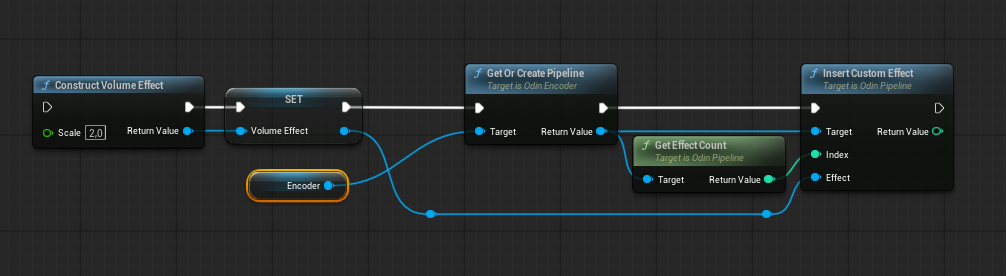
Index determines the processing order. The screenshot uses Get Effect Count to append the effect as the last effect.
Position also determines what an effect receives. For example, a clone effect before a mute effect receives the audio before muting. One after a mute effect with sample clearing enabled receives zeros. Put an activity effect after the effects that set the silence flag you want to observe.
Return Value is the effect ID. Save it to address the effect later. A return value of 0 indicates that insertion failed.
Remove an effect
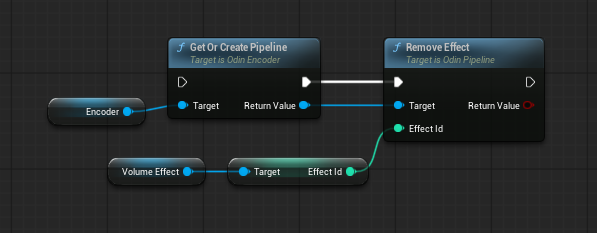
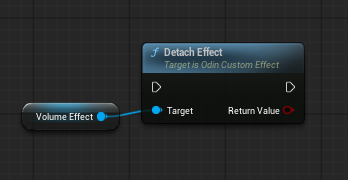
To remove an effect, call Remove Effect on its pipeline with the saved effect ID, or call Detach Effect on the effect object. Once removal succeeds, you can clear the stored reference.
Remove Effect
Detach Effect
Asynchronous processing
Choose the approach based on whether the result must replace the audio in the pipeline:
| Goal | Approach | Where the work runs |
|---|---|---|
| Apply a short calculation directly to the current block | Override UOdinCustomEffect::CustomEffect | Inline on the audio processing thread |
| Run heavier processing and play or transmit its output | Use UOdinCallbackEffect | Sequential processing on a worker, with delayed output back into the pipeline |
| Send audio to an API, record it, or analyze it without replacing playback | Use UOdinCloneEffect | Copies arrive on the game thread. Start async requests or worker jobs from there |
Process audio with UOdinCallbackEffect
UOdinCallbackEffect extends UOdinCustomEffect with a queue and worker processing. You can construct it directly and call SetProcessFunction, or derive from it and override ProcessSamples(TArrayView<float> Samples, bool& bIsSilent). Keep its inherited CustomEffect implementation so the queue and output handling remain active.
Blueprints can construct and insert the effect, but the processing function must be implemented in C++. Without an override or a function set through SetProcessFunction, the worker leaves the samples unchanged.
The audio callback copies each block into owned storage and returns a previously completed block, or a fallback if that block is not ready. The worker calls ProcessSamples one block at a time, in order. It can modify both the copied samples and their silence flag. A later audio callback writes that result into the pipeline.
For example, declare an effect member inside your Unreal class:
Then configure it after obtaining a valid UOdinPipeline* Pipeline.This small gain function demonstrates where your worker-safe processing goes:
Latency and late results
Worker processing adds at least one 20 ms block of delay, even when the calculation is fast. The first block after startup, or after the effect has not been called for one second, is silence. GetDelay() reports the current added delay in seconds.
MaxDelay defaults to 0.2 seconds and has an effective minimum of one block. Fallback controls what happens when a due block is still being processed:
| Fallback | Audio output when processing is late | Delay behavior |
|---|---|---|
Silence (default) | Zeros marked silent; the unprocessed original is never substituted | Delay grows in 20 ms steps up to MaxDelay. Blocks still late at the limit are dropped. Extra delay is reduced by dropping silent blocks when possible. |
Original | The due block's original samples and original silence flag | Lateness does not grow the delay. The late processed result for that block is discarded. |
Choose Silence if unprocessed audio must not be heard, for example in a voice changer. If a block is not ready in time, the effect outputs silence. The fallback does not detect processing errors. If your processing function fails, clear the samples and set bIsSilent = true before returning to prevent the original audio from being heard.
Choose Original when continuity matters and hearing unprocessed audio is acceptable. Sustained processing slower than one block per 20 ms cannot keep up indefinitely. The fallback handles overload, but does not increase processing throughput.
API requests, ownership, and shutdown
ProcessSamples runs asynchronously relative to the audio thread, but each invocation must finish its work before returning. Starting an HTTP request and returning does not make its eventual response part of that block. Do not capture Samples, its data pointer, or bIsSilent in a later completion callback.
For an API that returns replacement audio, use a design with owned request buffers, ordered results, explicit deadlines, and enough buffering for the service's latency. Consume completed results inside your processing function. An API that needs larger chunks will require you to perform batching, because the callback receives individual 20 ms blocks. If the result is a transcript or analysis rather than replacement audio, use the clone approach below.
MaxDelay limits queued audio delay, it does not cancel a request or interrupt a running ProcessSamples. Set a timeout for API requests or other external operations, and provide a way to cancel them when the effect shuts down. The implementation waits for worker processing during destruction, so processing must always return. WaitUntilProcessed(Timeout) can wait for queued worker tasks, but does not itself stop new input or cancel timed-out tasks, never wait for it on the audio thread.
Send sample copies to APIs with UOdinCloneEffect
UOdinCloneEffect copies samples without delaying or replacing the pipeline audio. Construct it with Construct Clone Effect, retain it, and insert it into the desired pipeline. Bind On Dispatch Clone Callback in Blueprint, or override Callback(Audio::TSampleBuffer<float> Buffer) in C++. Delivery is on the game thread by default, so launch async HTTP requests there and move expensive CPU work to a worker.
The clone effect provides the following controls:
| Control | Behavior |
|---|---|
Interval | Seconds of audio to collect before delivery. Default 0 delivers every block, or several blocks together when the game thread is slower. For example, 0.5 collects approximately half a second per delivery. |
MaxBufferedSeconds | Maximum audio held if the game thread falls behind. Defaults to 10. Excess incoming blocks are dropped and the drop is logged. |
bSkipSilence | Skips blocks which are marked silent. Defaults to false. Place the effect after VAD or mute when you want to use their results. Skipping removes those blocks from the collected audio, so preserve timing separately if your service needs it. |
Flush() | Delivers the collected samples immediately, for example when push-to-talk is released. Call it on the game thread. |
If an API request needs the samples after the callback returns, copy them into a buffer owned by the request. Use the pipeline's interleaved stereo, 48 kHz format when encoding a request, and convert or resample if your service expects a different format. Keep game-thread callbacks short, add an upper bound on the number of API requests, and handle responses independently of the audio callback.
This guide was last updated to work with ODIN Unreal Plugin version 20208.1.0.