Adding a GitLab Registry
To link your GitLab container registry with ODIN Fleet, follow these steps:
1. Access the Docker Registries Section
Navigate to "Settings" in the ODIN Fleet dashboard after selecting/creating your app. In Settings, navigate to the " Docker Registries" tab.
2. Add a New Registry
Click the "Add Registry" button and select "GitLab" from the options.
3. Provide Required Information
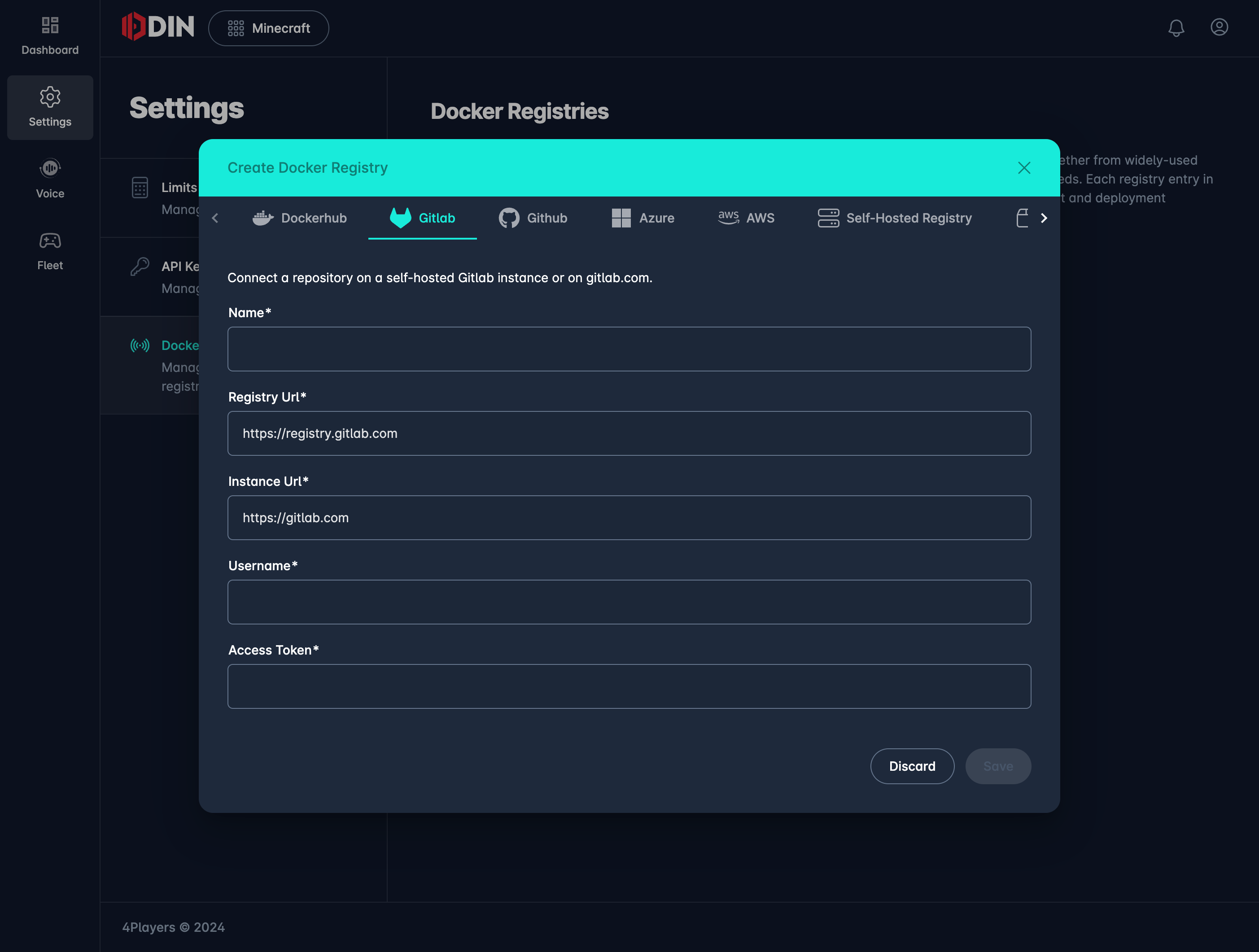
Enter the following details to establish a connection with your GitLab container registry:
- Name: Enter a name for this registry connection.
- Registry URL: For GitLab.com, use
https://registry.gitlab.com. For self-hosted instances, use the appropriate registry URL. - Instance URL: For GitLab.com, use
https://gitlab.com. If you are using a self-hosted instance, enter its URL. - Username: Provide your GitLab username.
- Access Token: Provide an access token with the necessary permissions to access your GitLab registry.
To generate a GitLab access token, visit
the GitLab Profile Settings and create a new personal access
token. Ensure that the token has the necessary scopes (e.g., read_registry) to interact with the container registry.
More information can be found in
the GitLab documentation.
4. Save the Configuration
After entering the necessary details, click "Save" to complete the integration.
You can now pull images from your GitLab container registry directly within ODIN Fleet.