Setup Deployments
The Deployment Settings section allows users to manage where and how many server instances are deployed across various locations. This guide will help you navigate the deployment settings, create new deployments, and manage existing ones.
Deployment Overview
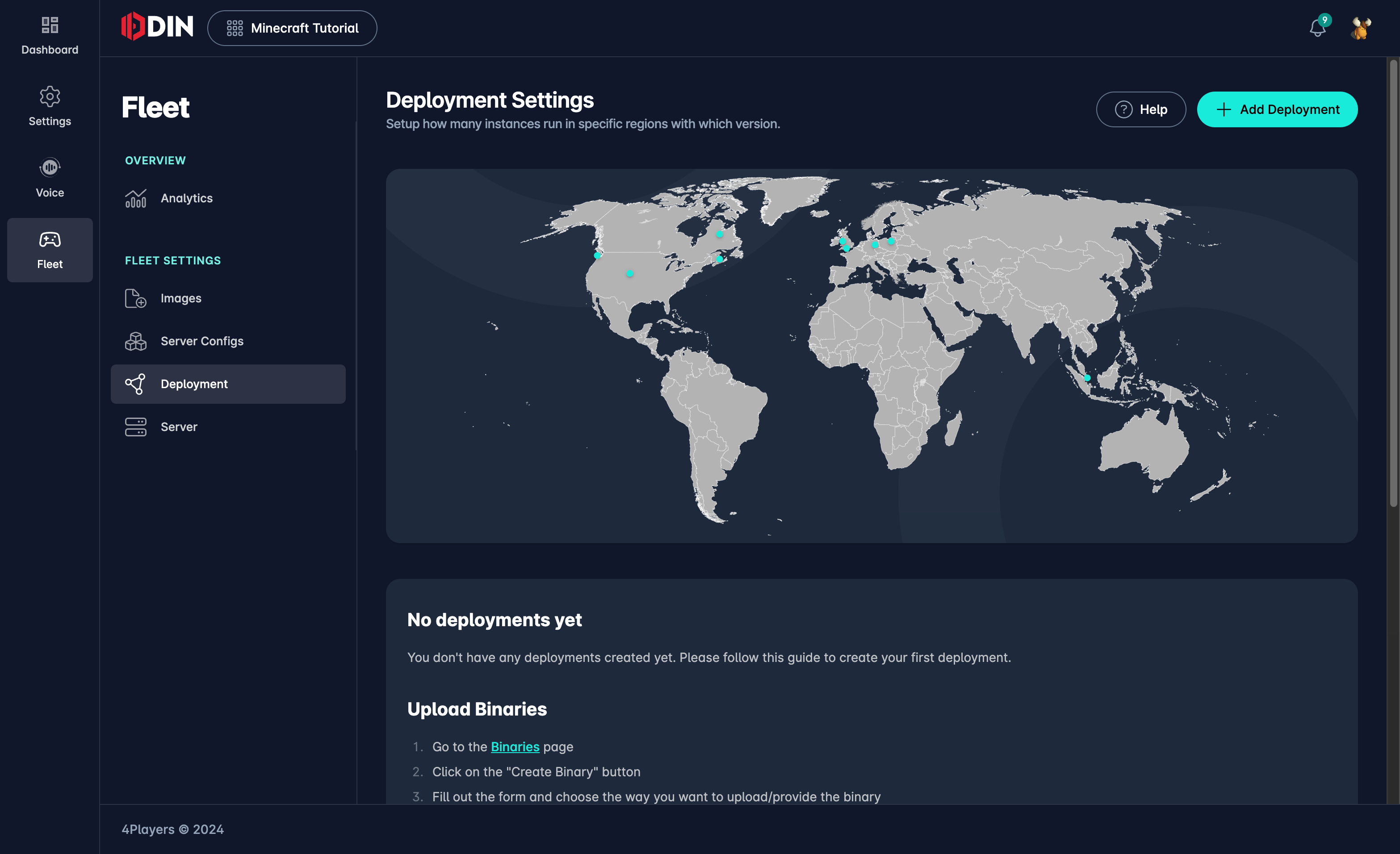
In the Deployment Settings panel, you will see a map indicating the geographical locations of your deployments and a list of current deployment configurations. Each entry provides the following details:
- Region: The geographical region of the deployment.
- City: The specific city where the deployment is located.
- Name: The name of the deployment configuration.
- Server Config: The configuration used for this deployment.
- Num Instances: The number of server instances running.
- Options: Actions to edit or delete the deployment.
Creating a Deployment
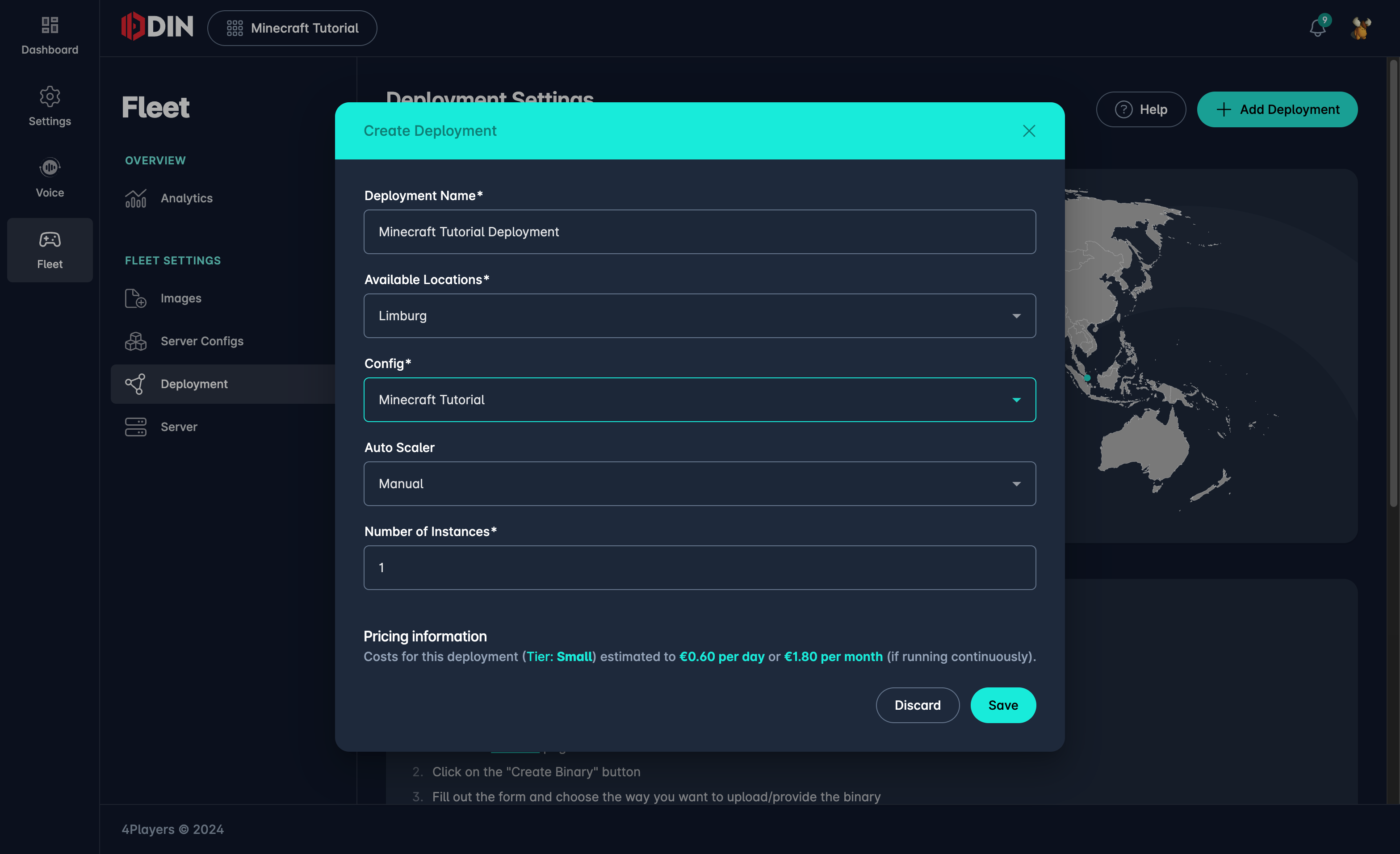
To create a new deployment, follow these steps:
- Click the Add Deployment button at the top right corner.
- In the Create Deployment dialog, fill in the following fields:
- Deployment Name: The name for your deployment.
- Available Locations: Choose from the available locations where the deployment will run.
- Config: Select the server configuration to use.
- Autoscaling: Turn this on when Fleet should keep instances ready for allocation instead of using a fixed instance count.
- Number of Instances: For normal deployments, set the number of server instances to run. For autoscaled deployments, configure Minimum, Maximum, and Buffer instead.
- Click Save to create the deployment.
ODIN Fleet will immediately start deploying the server instances based on the configuration you provided.
Editing a Deployment
To edit an existing deployment:
- Click the edit icon (pencil) next to the deployment you want to modify.
- In the Edit Deployment dialog, adjust the fields as needed:
- Deployment Name: Update the name of the deployment.
- Available Locations: You cannot change the location of an existing deployment.
- Config: Change the server configuration if needed.
- Autoscaling: Existing autoscaled deployments stay autoscaled.
- Number of Instances: Adjust the fixed instance count for normal deployments, or adjust Minimum, Maximum, and Buffer for autoscaled deployments.
- Click Save to apply the changes.
ODIN Fleet will update the deployment settings accordingly immediately.
For the autoscaling model, lifecycle callbacks, and health checks, see Autoscaling. To build and test the Counter-Strike 1.6 example, use the Interactive Autoscaling Demo.
You cannot move a deployment to a different location. If you need to change the location, create a new deployment and delete the existing one. If you need to move persistent data, create a backup of the data, deploy a new server in the desired location, and restore the backup. Reach out to us if you need assistance with this process.
Deleting a Deployment
To delete a deployment:
- Click the delete icon (trash can) next to the deployment you want to remove.
- Confirm the deletion in the prompt that appears.
Pricing Information
At the bottom of the Add/Edit Deployment dialog, you will see an estimated cost for the deployment based on the selected tier and configuration. This helps you understand the financial impact of your deployments and make informed decisions.