Autoscaling
Autoscaling lets Fleet automatically adjust the number of instances as matches begin and end. Unlike a standard deployment with a fixed number of instances, an autoscaled deployment starts or removes instances as demand changes. This is useful for ranked matches, private lobbies, battle arenas, co-op sessions and similar workloads where ready game servers must be available immediately and allocated to players as soon as a session begins.
How Autoscaling Works
You can enable autoscaling when creating a deployment in Fleet. An autoscaled deployment has three capacity options:
minInstancessets the lowest number of instances Fleet keeps. WithminInstances: 2, at least two instances run even when there are no matches.maxInstanceslimits the total number of instances Fleet can manage for the deployment. WithmaxInstances: 4, it never runs more than four instances.bufferSizesets how many instances Fleet keeps available for upcoming matches in addition to those already assigned. Available instances areready; assigned instances areallocated. WithbufferSize: 2, Fleet aims to keep tworeadyinstances available.
Autoscaling reacts to the state of each instance:
| State | Description |
|---|---|
preparing | Fleet has started the instance and is waiting for it to report ready. It cannot be allocated yet. |
ready | The server reports ready when it can accept a match. The instance is then available for allocation. |
allocated | A matchmaker claims a ready instance through an allocation, making it unavailable for another match. The server can also report allocated after accepting the assignment. |
shutdown | The server reports shutdown, usually after a match ends, so Fleet removes the instance. This is final; to reuse the instance, report ready instead. |
unhealthy | Fleet marks an instance unhealthy when its server process stops or, with health checks enabled, it misses required heartbeats. Fleet removes it and starts a replacement in preparing. There is no separate healthy state. |
When a match needs a server, the matchmaker allocates one ready instance, which becomes allocated. When the match
ends, the server can report ready again for another match or shutdown so Fleet removes the instance.
The following example uses minInstances: 2, maxInstances: 4 and bufferSize: 2:
- StartFleet immediately starts two instances because minInstances is 2.
2 preparing instances - ReadyAfter starting, both servers report their instances as ready.
2 ready instances - AllocationTwo matches allocate both ready instances, leaving no ready instances.
2 allocated + 0 ready - Scale UpTo restore bufferSize to 2, Fleet starts two new instances and reaches maxInstances at 4. Both servers then report ready.
2 allocated + 2 ready - Scale DownAs the matches end, each server reports ready for reuse or shutdown for removal. Fleet scales down until the two ready instances configured by bufferSize remain.
2 ready instances remain
To inspect the instances Fleet currently manages, open Servers in the Console and apply the Autoscaling filter. The API
returns the same total as currentInstances.
View step in Console
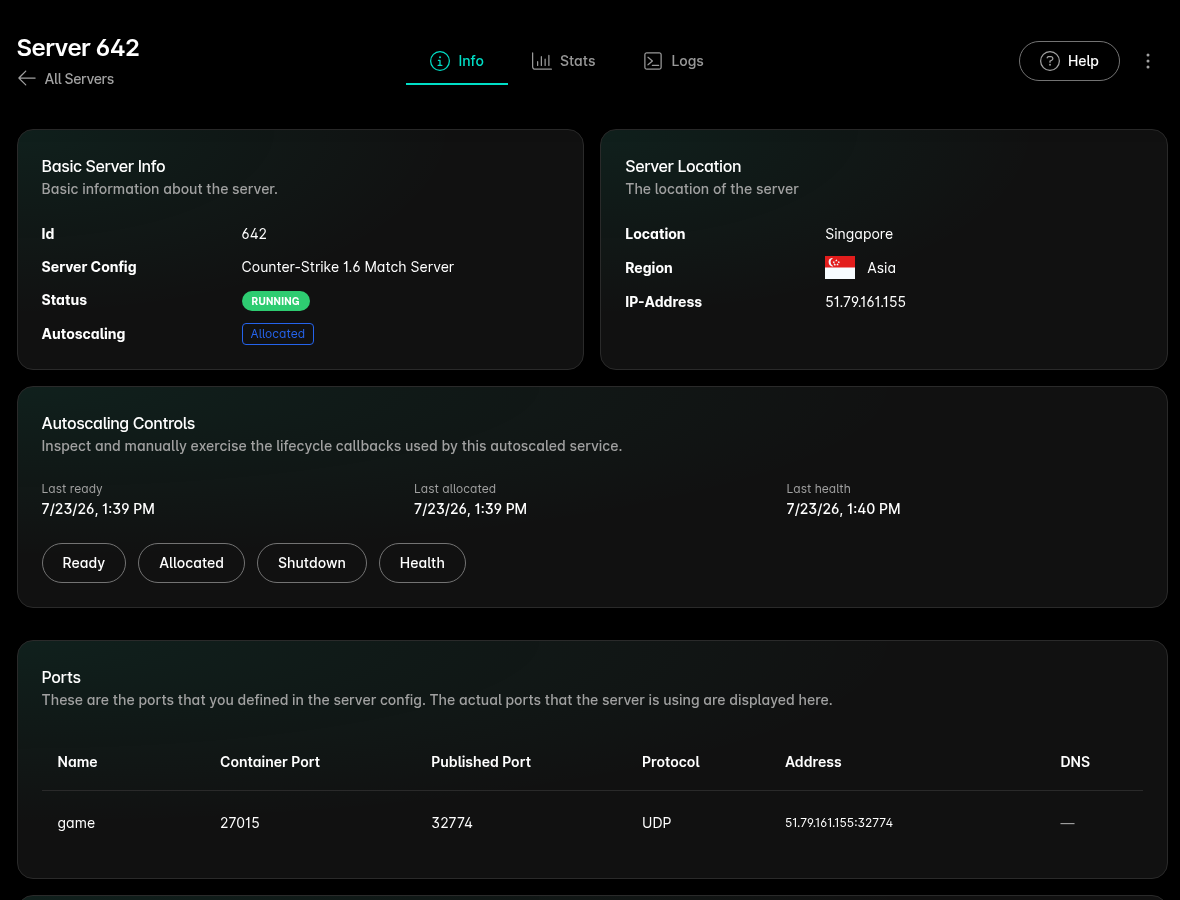
The server detail view provides Autoscaling Controls for simulating Ready, Allocated, Shutdown and Health. Use them while testing. In production, the server reports these state changes and sends health heartbeats itself.
Allocation
View step in Console
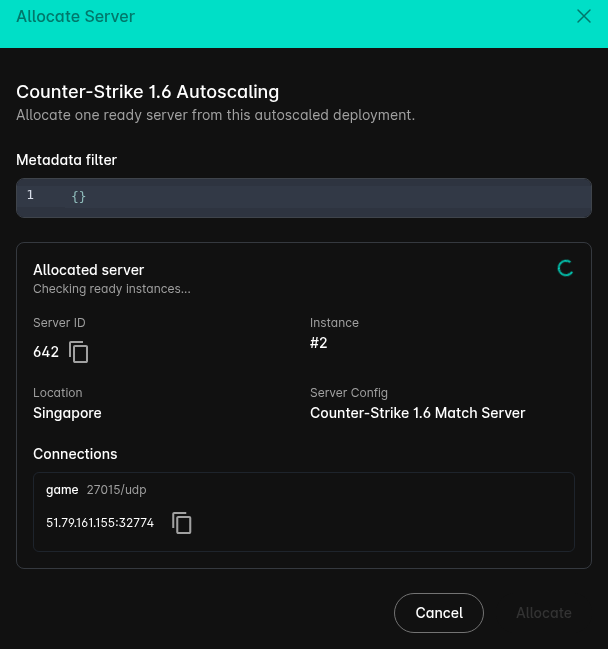
Only ready instances can be allocated. In the Console, select Allocate Server on the autoscaled deployment. A
matchmaker or backend can instead call the
allocation endpoint.
An allocation changes the instance from ready to allocated. Fleet then starts another instance to restore the
configured bufferSize unless the deployment has reached maxInstances. If no ready instance matches the request, the
API returns 409 Conflict. Wait for an instance to report ready, adjust bufferSize or maxInstances if needed and
retry.
An allocation request can also be narrowed down by metadata, such as a specific map, server version or custom flags previously added to the instance.
View a metadata allocation request
Only a ready instance matching a specific map, version and custom flag will be allocated:
Health Checks
Health checks act as a watchdog and confirm that a server is still responding. They do not add a healthy state:
ready means an instance can accept a match, while heartbeats confirm that its server continues to respond.
Health behavior is configured per autoscaled deployment:
healthInitialDelaySecondsgives a newly started server a grace period before missed heartbeats begin to count. The minimum is 0 seconds.healthPeriodSecondssets the expected time between heartbeats. The minimum is 10 seconds.healthFailureThresholdsets how many consecutive heartbeat periods can be missed before Fleet considers the instance unhealthy. The minimum is 1.
The Console defaults to an initial delay of 10 seconds, a period of 10 seconds and a failure threshold of 3. With these
settings, a new preparing instance has about 40 seconds to send its first heartbeat. After the first heartbeat, the
timeout is about 30 seconds. Fleet scans every 10 seconds, so detection may occur up to 10 seconds after the deadline.
Fleet then removes the unhealthy instance and starts replacement capacity when required.
You can enable health checks in the Console when creating or updating the autoscaled deployment or by setting
healthEnabled: true via API. The three health values are required in every autoscaling payload and remain stored while
health checks are disabled.
View a health heartbeat request
Fleet can inject the health endpoint and API token into the container as system variables. Map
autoscaling-health-url to ODIN_AUTOSCALING_HEALTH_URL and token to ODIN_API_TOKEN, then send a heartbeat at least
once per configured healthPeriodSeconds interval:
A successful heartbeat returns 204 No Content.
If health checks are enabled but the server does not send heartbeats, Fleet replaces each unhealthy instance with a new one. While Fleet adjusts capacity, deleting the deployment may be temporarily unavailable, but you can still update it. Disable health checks, wait for maintenance to finish, then delete the deployment or enable health checks again once heartbeats work reliably.
Autoscaling also changes how Fleet handles container restarts. Autoscaled instances always use an effective restart
policy of none, regardless of the policy configured on the Server Config. Fleet replaces a terminal task instead of
letting Docker restart it underneath the autoscaling lifecycle. The configured restart policy continues to apply when
the same Server Config is used by a normal deployment. Terminal tasks are replaced even when heartbeat health checks
are disabled.
System Variables
Fleet can inject each instance's autoscaling URLs and API token into the container. In the Server Config, map these dynamic system values to environment variable names of your choice, then use them to report state changes and send health heartbeats.
| System variable | Description |
|---|---|
token | API token used to authenticate these requests. |
autoscaling-ready-url | Reports the instance as ready. |
autoscaling-allocated-url | Confirms that the instance is allocated. |
autoscaling-shutdown-url | Reports the instance as shutdown. |
autoscaling-health-url | Sends a health heartbeat for the instance. |
For example, map autoscaling-ready-url to ODIN_AUTOSCALING_READY_URL and token to ODIN_API_TOKEN. The server can
then report ready with:
The other status updates use the same pattern with their corresponding URL.
Troubleshooting
| Symptom | Likely cause | What to check |
|---|---|---|
Allocation returns 409 Conflict. | No ready instance matches the request. | Check startup logs, the ready request, metadata filters and whether the deployment reached maxInstances. |
Instances remain in preparing. | The server does not report ready. | Confirm that autoscaling-ready-url and the API token are injected and that the request succeeds. |
| An instance is replaced after enabling health checks. | Heartbeats have stopped or never started. | Check autoscaling-health-url, the API token, heartbeat interval and server logs. |
| The configured number of ready instances is not restored. | Fleet reached its capacity limit, or replacement instances remain preparing. | Check location capacity, maxInstances, bufferSize, startup logs and the ready status update. |
Next Step
Continue with the Interactive Autoscaling Demo to create a deployment, allocate a ready instance and watch Fleet adjust capacity on the fly.