FMOD Studio Plugin for ODIN Voice
Our DSP-based plugin connects FMOD Studio to ODIN Voice and decodes remote peer audio into the DSP output buffer. This plugin is intended for use inside FMOD Studio only. It is not a standalone application; when hosted outside FMOD Studio it behaves as a simple passthrough (input copied to output) and does not mix any ODIN audio.
The code and binary releases of this plugin are available in the ODIN FMOD Studio Plugin repository.
To integrate ODIN with FMOD Core, use our integration guides for Unreal and Unity or use the Unreal Adapter Plugin.
⚠️ Studio-only policy: do not ship this plugin in console, mobile, or web runtime builds. For production/runtime targets, integrate the ODIN SDK directly in your app and route that audio through your runtime audio pipeline. If an event uses this DSP, the runtime will require the plugin binary at load time, so remove the DSP from runtime events (or maintain Studio-only event/bank variants) before building runtime banks.

What It Does
- Exposes FMOD Studio parameters:
Access Key(text)Room Id(text)User Id(text, optional)Connect(toggle)
- Connects to ODIN when
Connect = true. - Mixes decoded peer audio to the plugin output.
- Disconnects and frees resources when
Connect = falseor the plugin is released. - Outside FMOD Studio, the plugin only passes the input buffer through unchanged.
Installation (Binary Release)
- Download the latest release asset for your platform.
- Extract the archive.
- Copy the plugin files into your FMOD Studio install:
fmod_odin_playback.dll-><FMOD Studio>/Plugins/fmod_odin_playback.plugin.js-><FMOD Studio>/Plugins/odin.dll-><FMOD Studio>/
Then restart FMOD Studio so the plugin is reloaded.
Using the Plugin in FMOD Studio
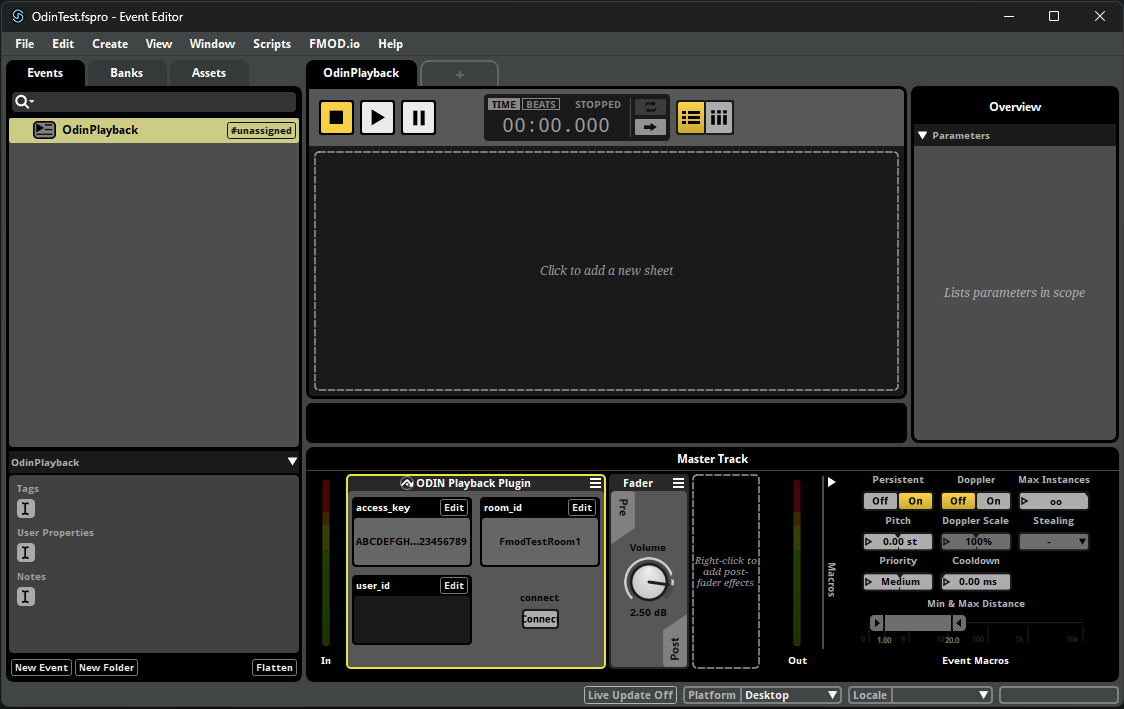
- In the Events browser, create or open an event.
- In the Event Editor (signal chain), add ODIN Playback Plugin to the audio path.
- In the Event Editor header, enable Persistent for the event.
- In the Deck (plugin UI), enter
Access Key,Room Id, and optionalUser Id. - In the Deck, click
Connect. - Press Play on the event (transport bar or event preview) to monitor the room audio.
Notes:
User Idempty = mix all remote peers.- If you do not hear audio, confirm the event is routed to an audible bus and the event is playing.
Testing with the 4Players Web App Sample
You can use the 4Players web app sample to join the exact same ODIN room that the FMOD plugin is connected to.
- In FMOD Studio, note the
Access KeyandRoom Idset in the ODIN Playback Plugin deck. - Open
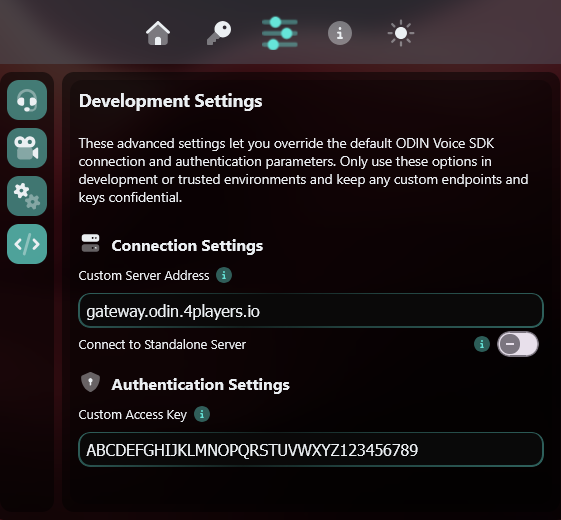
https://4players.app/. - Click the Settings (sliders) icon in the center, then switch to Development Settings (tags icon).
- Enter the same
Access Keyfrom FMOD Studio and set the gateway togateway.odin.4players.io(nohttps://prefix).
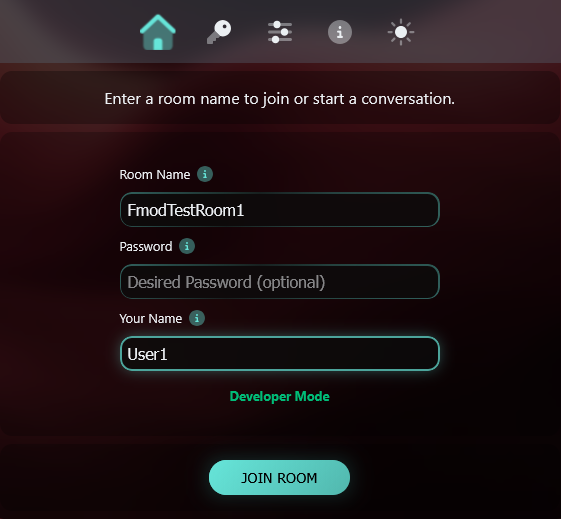
- In the connection dialog, enter the same
Room Idas FMOD Studio, add any display name, leave the password empty, and click Join Room. - Start talking in the browser, then press Play on the FMOD event; you should hear the web app audio in FMOD.
Notes:
- The room must match exactly; even a single character difference creates a different room.
- If you are using
User Idin FMOD, set the web app's user ID to the same value to target that peer. - Remember the security reminder below:
Access Keyis for local testing only.
FMOD Parameter Behavior
Access Key: required for local token generation (testing only, not production-safe).Room Id: required.User Id: ODIN user ID to follow in strict mode.Listen All:true: ignoreUser Idand mix all remote peers.false: strict mode; only the matchingUser Idpeer is mixed.- In strict mode, an empty
User Idmutes output.
Connect:true: initialize ODIN, generate token, join room.false: leave room and release ODIN resources.
User Id Switching Behavior
- You can change
User Idwhile connected; no reconnect is required. - Switching targets selects the first currently-known peer that matches the new
User Id. - If the matching peer joins later (or updates its user data later), the plugin will switch at that time.
- If multiple peers share the same
User Id, the first matching peer will be used. - Clearing
User Idmutes output whileListen Allisfalse. - Enabling
Listen Allresumes mixing all peers.
Troubleshooting
- Cannot connect:
- Check
Access KeyandRoom Idfor typos. - Ensure your machine can reach the ODIN gateway.
- Check
- Event plays but no audio:
- Make sure Persistent is enabled on the event.
- Confirm the event is routed to an audible bus and the master output is not muted.
- Enable
Listen Allto monitor all peers regardless ofUser Id.
- Audio drops after changing
Access KeyorRoom Id:- The plugin reconnects automatically. Wait a moment for the room to rejoin.
Audio Mixing Behavior
- Input passthrough: the DSP copies the incoming FMOD signal to the output unchanged.
- ODIN streams: each decoded peer stream is mixed additively into the same output buffer.
- Mixing details:
- Stereo streams are added channel-by-channel.
- If the output is mono, left and right are averaged before being added.
- Per-sample values are clamped to
[-1.0, 1.0]after accumulation.
Security Reminder
⚠️ Embedding access_key in client tooling is only suitable for local testing. In production, generate signed ODIN tokens on a trusted backend and pass only short-lived tokens to clients.
Build From Source (All Platforms)
This repository uses CMake. You need the FMOD Core API SDK and the ODIN SDK.
General steps:
- Get the FMOD Core API SDK and note its path.
- Get the ODIN SDK and note its path.
- Configure with CMake, pointing to both SDKs.
- Build the plugin.
- Copy the output binaries into your FMOD Studio install and restart FMOD Studio.
To target the ODIN 1.7.x API implementation, configure with:
To use custom-built ODIN binaries, place them in:
third_party/odin-overrides/<platform>/
Examples:
- Windows x64:
third_party/odin-overrides/windows-x86_64/odin.dll+odin.lib - Linux x64:
third_party/odin-overrides/linux-x86_64/libodin.so - macOS arm64:
third_party/odin-overrides/macos-aarch64/libodin.dylib
CMake prefers override binaries before ODIN_SDK_DIR/bin/<platform>.
Windows (Visual Studio)
Configure:
Build:
Install (staged output):
Outputs:
build/Release/plugins/fmod_odin_playback.dllbuild/Release/plugins/fmod_odin_playback.plugin.jsbuild/Release/odin.dll
Copy to FMOD Studio:
fmod_odin_playback.dll-><FMOD Studio>/Plugins/fmod_odin_playback.plugin.js-><FMOD Studio>/Plugins/odin.dll-><FMOD Studio>/
macOS
Configure:
Build:
Install (staged output):
Outputs:
build/Release/plugins/libfmod_odin_playback.dylibbuild/Release/plugins/fmod_odin_playback.plugin.jsbuild/Release/libodin.dylib
Copy to FMOD Studio:
libfmod_odin_playback.dylib-><FMOD Studio>/Plugins/fmod_odin_playback.plugin.js-><FMOD Studio>/Plugins/libodin.dylib-><FMOD Studio>/
Linux
Configure:
Build:
Install (staged output):
Outputs:
build/Release/plugins/libfmod_odin_playback.sobuild/Release/plugins/fmod_odin_playback.plugin.jsbuild/Release/libodin.so
Copy to FMOD Studio:
libfmod_odin_playback.so-><FMOD Studio>/Plugins/fmod_odin_playback.plugin.js-><FMOD Studio>/Plugins/libodin.so-><FMOD Studio>/