Integrating ODIN Voice Chat with the FMOD Audio Solution in Unity

Introduction
Welcome to this guide on integrating the ODIN Voice Chat Plugin with the FMOD Audio Solution in Unity. The code used in this guide is available on the ODIN-FMOD Git repository.
What You'll Learn:
- How the
FMODMicrophoneReader
,FMODPlaybackComponent
andFMODPlayback3DPosition
scripts work and how to use them in your project - Properly set up ODIN in Unity when using FMOD as an audio solution
- Deal with limitations and potential pitfalls
Note: This guide assumes that your project has disabled Unity's built-in audio.
Disclaimer: The playback shown here feeds ODIN audio into a user-created FMOD stream (createStream with a PCM read
callback). FMOD buffers such a stream with its default decode buffer of 400 ms, which showed up as roughly 500 ms of
added latency in our tests. Setting CREATESOUNDEXINFO.decodebuffersize to 40 to 50 ms worth of samples shrinks
that buffer to about 20 to 25 ms of lead without dropouts; 20 ms already crackles, because the stream thread then
refills just in time. The approach with the lowest latency is a custom DSP whose read callback pulls the ODIN
audio directly inside the FMOD mixer, without any stream buffer in between, as shown in the DSP Plugin chapter of
the Unreal FMOD guide.
Getting Started
To follow this guide, you'll need to have some prerequisites:
- Basic knowledge of Unity
- The FMOD Plugin for Unity, which you can get here
- The ODIN Voice Chat Plugin, available here
To set up FMOD in your project, please follow FMOD's in-depth integration tutorial. You can find the tutorial here.
To set up the ODIN Voice Chat Plugin, please take a look at our Getting-Started guide, which you can find here:
Begin ODIN Getting Started GuideFMODMicrophoneReader
script is an essential part of the FMOD integration. It replaces the default ODINMicrophoneReader
component, taking over the microphone input responsibilities by using FMOD. This script is crucial for reading microphone data and sending it to the ODIN servers for voice chat.You can either follow the Usage setup to drop the FMODMicrophoneReader
Usage
- Add the
FMODMicrophoneReader
script to yourOdinManagerprefab. - Disable the original
MicrophoneReader
component.
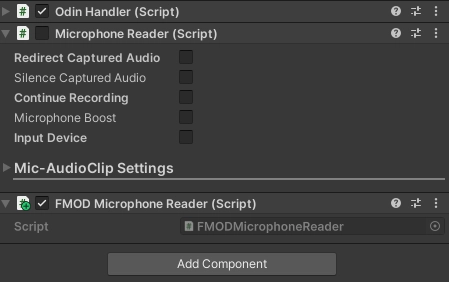
If you're using ODIN Plugin versions older than 1.5.9, do not remove the MicrophoneReader
The script currently doesn't support automatic device switching or allow for programmatically changing devices. If you'd like to see extensions to this script, feel free to join our Discord server and let us know.
How it works
To read data from the microphone using FMOD, we'll need to perform the following steps:
- Setup and create a
FMOD.Soundobject, into which FMOD can store the microphone input data. - Start the microphone recording.
- Continually read the FMOD microphone data and push it to the ODIN servers.
1. Setup
The setup is performed in Unity's Start() method.
Retrieve Microphone Info
You need to retrieve details about the microphone, such as the sampling rate and the number of channels. We'll use this info to configure the FMOD recording sound in the next step and the ODIN microphone streams later on.
Configure Recording Sound Info
After obtaining the input device details, the next action is to set up the CREATESOUNDEXINFO object. This object
carries essential metadata that FMOD needs for audio capture.
We use SOUND_FORMAT.PCMFLOAT because ODIN requires this format for microphone data. This avoids the need for audio
data conversions later on.
The _recordingSoundInfo.length is set to capture one second of audio. To change the recording duration, you can adjust
the formula with a different multiplier.
Create Recording Sound
To hold the captured audio, FMOD requires us to create a FMOD Sound object as shown below.
Here, we use the MODE.LOOP_NORMAL | MODE.OPENUSER flags in combination with the previously configured
_recordingSoundInfo to initialize the _recordingSound object.
2. Recording
At this point, we're ready to start capturing audio. To do so, call the recordStart method from FMOD's core system.
After initiating the recording, we also get the length of the recorded sound in PCM samples by calling getLength. This
value will help us manage the recording buffer in later steps.
3. Continually push microphone data
In the Update() method, we manage the ongoing capture of audio data from the FMOD microphone and its transmission to
the ODIN servers. This ensures that the audio stream remains both current and continuously active.
Initialization
The method starts by checking if there is an active OdinHandler
The next step is to find out how much audio has been recorded since the last check. This way, we know how much data to read from the buffer.
If the read buffer is too short to hold the new audio data, its size is updated.
Read Microphone Data
Microphone data is read from the FMOD sound object and copied into the read buffer using FMOD's @lock and the System
Marshal.Copy functions.
In this implementation, it's crucial to be aware of the unit differences between FMOD, ODIN, and the system's
Marshal.Copy function. FMOD expects the read position and read length to be specified in bytes. In contrast, both ODIN
and Marshal.Copy require the lengths to be represented as the number of samples being copied. Since we're recording in
the SOUND_FORMAT.PCMFLOAT format, we can use sizeof(float) to easily switch between FMOD's byte-sized units and
ODIN's sample-sized units.
Push Microphone Data
After reading, if there is any valid data, it is pushed to the ODIN servers and the current microphone read position is updated.
The _currentReadPosition is reset back to zero when it reaches the length of the recording buffer to avoid going out
of bounds.
The ValidateMicrophoneStream method ensures that an ODIN microphone stream is set up and configured correctly:
By understanding and implementing these steps, you should be able to continually read FMOD microphone data and push it to the ODIN servers, thereby keeping your audio stream up-to-date.
FMODPlaybackComponent
script replaces the default ODINPlaybackComponent
component, taking over the creation and playback of an FMOD audio stream based on the data received from the connected ODIN Media Stream.You can either follow the setup to use the FMODPlaybackComponent
Usage
- On the
OdinHandler
script of yourOdinManagerprefab, switch fromPlayback auto creationtoManual positional audio.
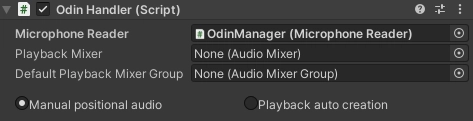
- In an
OnMediaAdded
callback, instantiate a newFMODPlaybackComponent
and set theRoomName,PeerIdandMediaStreamIdvalues based on theMediaAddedEventArgsinput, e.g. like this:
- Keep track of the instantiated objects and destroy the
FMODPlaybackComponent
if theOnMediaRemoved
callback is invoked, e.g. like this:
For the full implementation details, take a look at the FMODPlaybackComponent
How it works
To playback data from the microphone stream supplied by ODIN, we'll need to perform the following steps:
- Setup and create a
FMOD.Soundobject, into which we'll transfer the audio data received from ODIN. FMOD will then use theSoundobject to playback that audio. - Continually read the ODIN media stream data and transfer it to FMOD for playback.
1. Setup
We perform the setup in Unity's Start() method.
Setup Playback Sound Info
First, populate the CREATESOUNDEXINFO object with the settings FMOD needs to play back the audio streams correctly.
Here, we pull the number of channels and the sample rate
from OdinHandler.Config FMODMicrophoneReader
SOUND_FORMAT.PCMFLOAT.
This ensures compatibility between FMOD and ODIN's sampling units. We also set the playback sound buffer to hold one
second's worth of audio data.
The crucial part of this configuration is setting up the PCM read callback. The PcmReadCallback function is invoked
by FMOD whenever it needs fresh audio data, ensuring uninterrupted playback.
Initialize Stream and Trigger Playback
In this case, we opt for the createStream method, which is essentially the createSound function with the
MODE.CREATESTREAM flag added.
To initiate playback, we retrieve the Master Channel Group from FMODUnity.RuntimeManager.CoreSystem and use it along
with the stream we've just created. Keeping a reference to the returned _playbackChannel allows us to configure the
channel for 3D positional audio later on.
2. Read and Playing Back ODIN Audio Streams
The task of fetching audio data from ODIN and sending it to FMOD is accomplished within the PcmReadCallback method.
PCM Read Callback
To enable calls between native and managed code, we annotate the method with the
[AOT.MonoPInvokeCallback(typeof(SOUND_PCMREAD_CALLBACK))] attribute. The callback function is provided with three
parameters, of which we only need data and dataLength. These values indicate where to store the ODIN audio data
and the number of required samples, respectively.
Data Validation
Next, we include some validation logic:
Similar to our approach in the FMODMicrophoneReader
sizeof(float) to switch between the
byte-size units used by FMOD and the sample-based units used by ODIN. If needed, we resize the _readBuffer and check
the data pointer for validity.
Read ODIN Data and Transfer to FMOD Stream
In the final step, we read the requested amount of samples from the ODIN media stream into _readBuffer. Then we copy
this data to FMOD using the provided data pointer.
The AudioReadData Utility.IsErrorPlaybackMedia stream into _readBuffer. We then use
ODIN's Marshal.Copy is used to transfer the _readBuffer contents to FMOD's designated playback
location in memory, identified by the data pointer.
Accessing the PlaybackMedia
To access a specific ODIN media stream, you'll need three identifiers: a room name, peer id, and media stream id. You can use these to fetch the media stream with a function like the following:
The values for RoomName, PeerId, and MediaStreamId can be obtained, for instance, from
the OnMediaAdded
FMODPlayback3DPosition
After setting up the basic FMOD playback, you may want to enhance your audio experience by adding 3D positional sound
features. The FMODPlayback3DPosition
Usage
To add the 3D audio features to your playback, simply add the component to the same game object
your FMODPlaybackComponent
FMODPlayback3DPosition
behaviour will automatically connect to and setup the playback component, as well as update the 3D position of the FMOD playback channel.RigidBody for velocity
determination. If a doppler effect is necessary for your project, consider extending the current implementation to
automatically access and update the velocity value as well.How It Works
Setup
To incorporate 3D audio capabilities into your FMOD playback, you'll need to modify some channel settings. The first
step is to ensure that the FMOD FMODPlaybackComponentSound and Channel objects are fully initialized by
the
After confirming initialization, we enable 3D audio by applying the MODE._3D flag to both FMODPlaybackChannel and
FMODPlaybackSound. Additionally, we set the 3DLevel blend level to 1 to fully engage 3D panning.
Positional Updates
To keep the FMOD sound object's position in sync with the Unity scene, we fetch the Unity GameObject's transform and convey its position and rotation to FMOD.
This approach ensures that the sound source remains spatially accurate within your Unity environment, enhancing the 3D audio experience.