Odin Fleet integration with AWS FlexMatch Matchmaking
The following guide shows how to integrate AWS FlexMatch with GameLift Anywhere and Odin Fleet compute resources within a sample Unreal Engine multiplayer game to create a robust and automated matchmaking pipeline. With a custom backend service, the system manages player tickets and uses Amazon SNS for event-driven updates, ensuring that the game client is notified of match results without excessive polling. The implementation showcases custom matchmaking rules and placement queues to efficiently distribute players across your specialized fleets, providing a scalable solution for dedicated server hosting and session management.
The FlexMatch guide assumes an already existing AWS GameLift Anywhere setup similar to the one built in the AWS GameLift Anywhere + ODIN Fleet guide.
Download links
Grab the Unreal Engine Dedicated Server and Game Client code from the following repository:
Unreal Engine Project
The Backend Service code is available at the following repository:
Backend Service Project
Requirements:
- A dedicated Unreal Engine Gameserver integrated with GameLift and ODIN Fleet
- An Unreal Game Client that's configured to interface with your backend service
- A backend service (such as Firebase or Node.js) to act as a trusted proxy for AWS API calls.
If you need assistance setting up one of the requirements, please take a look at our dedicated AWS GameLift Anywhere + ODIN Fleet guide setup, which will lead you through a sample setup meeting all requirements.
Steps in this guide:
- Integrate matchmaking logic into the backend service
- Configure AWS SNS notification channels and endpoint subscriptions
- Define a placement queue for AnywhereFleet and OdinFleet
- Create matchmaking configurations and JSON rulesets
- Implement the matchmaking lifecycle within the Unreal game client
1. Add matchmaking to the backendservice
While we are using Firebase Cloud Functions, any Node.js environment or similar web service works. This service acts as a secure coordination layer between the Unreal Engine game client and AWS GameLift, allowing the client to trigger actions without communicating with AWS directly.
To start a matchmaking attempt, the backend service needs to send a StartMatchmakingCommand, passing along the required matchmaking configuration and player data.
exports.StartFlexMatch = onRequest({region:GCloudRegion},async (req,res)=>{
if(req.body.PlayerData === undefined){
res.status(401).send("Missing Playerdata");
return;
}
if(req.body.Config === undefined){
res.status(401).send("Missing Configuration");
return;
}
const input = {
ConfigurationName:req.body.Config,
Players: req.body.PlayerData
};
const command = new StartMatchmakingCommand(input);
await executeCommand(res,command);
});
async function executeCommand(res,command){
try {
const response = await gameLiftClient.send(command);
res.status(200).send(response);
return;
} catch (error) {
console.error(error);
if(error instanceof FleetCapacityExceededException){
res.status(403).send("FleetCapacityExceededException");
}else{
res.status(400).send("An error occured");
}
return;
}
}
When the client invokes this, it receives a JSON response containing a ticketId. This ID is essential for tracking the progress of the matchmaking request, which we will cover in detail later.
The full response object looks like this:
{
"MatchmakingTicket": {
"TicketId": "STRING_VALUE",
"ConfigurationName": "STRING_VALUE",
"ConfigurationArn": "STRING_VALUE",
"Status": "CANCELLED" || "COMPLETED" || "FAILED" || "PLACING" || "QUEUED" || "REQUIRES_ACCEPTANCE" || "SEARCHING" || "TIMED_OUT",
"StatusReason": "STRING_VALUE",
"StatusMessage": "STRING_VALUE",
"StartTime": new Date("TIMESTAMP"),
"EndTime": new Date("TIMESTAMP"),
"Players": [
{
"PlayerId": "STRING_VALUE",
"PlayerAttributes": {
"<keys>": {
"S": "STRING_VALUE",
"N": Number("double"),
"SL": [
"STRING_VALUE",
],
"SDM": {
"<keys>": Number("double"),
},
},
},
"Team": "STRING_VALUE",
"LatencyInMs": {
"<keys>": Number("int"),
},
},
],
"GameSessionConnectionInfo": {
"GameSessionArn": "STRING_VALUE",
"IpAddress": "STRING_VALUE",
"DnsName": "STRING_VALUE",
"Port": Number("int"),
"MatchedPlayerSessions": [
{
"PlayerId": "STRING_VALUE",
"PlayerSessionId": "STRING_VALUE",
},
],
},
"EstimatedWaitTime": Number("int"),
},
};
The standard AWS Matchmaking workflow follows these steps:
- The client calls StartMatchmaking and receives a ticketId.
- AWS GameLift searches for a match within the timeframe defined in your configuration. It pairs the client with others based on your custom ruleset.
- Once a match is successful, the system provides connection details, including the IP address and port.
- While you can use the DescribeMatchmakingCommand to manually check a ticket's status, this should be reserved for testing. For production, Amazon SNS should be used to receive automatic status updates instead of constantly polling the API.
2. Setting up AWS SNS notifications
AWS Simple Notification Service (SNS) allows GameLift to communicate directly with your backend endpoint. Using SNS is highly recommended for tracking asynchronous events, such as matchmaking status and session placement, rather than manual polling.
To set up notifications, you will need to:
- Create a notification topic in the SNS dashboard
- Define a secure HTTPS endpoint in your backend service
- Add a subscription to link the topic to your endpoint
Create a notification topic
In the AWS Console, navigate to Amazon SNS(Simple Notification Service) and select Create a new topic.

Choose Standard as the topic type and provide a name. All other settings can remain at their default values for this setup.
Create the endpoint
Before subscribing to the topic, you need to set up the endpoint in your backend service to receive incoming notifications. For this guide, we are using an HTTPS endpoint.
exports.MatchmakingPlacement = onRequest({region: GCloudRegion},async (req,res)=>{
    console.log(req.body);
    res.status(200).send("OK");
});
To add the subscription, an empty endpoint is enough, you will just need to keep note of the URL. We will implement the full logic to process these messages in a later step.
Add a subscription
After you created the topic you need to add a subscription.
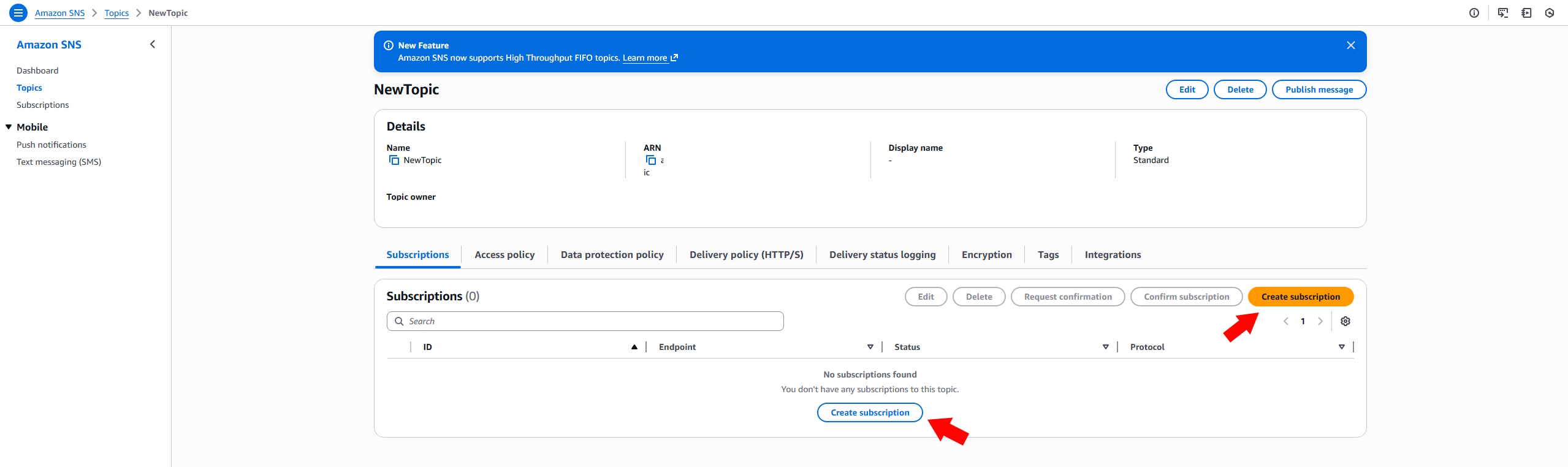
The subscription defines which delivery protocol is used. AWS SNS supports different protocols (Email, SMS, HTTP, HTTPS and more). For this case we are using the HTTPS protocol. Set the endpoint for this subscription to the URL of the backend service we created earlier.
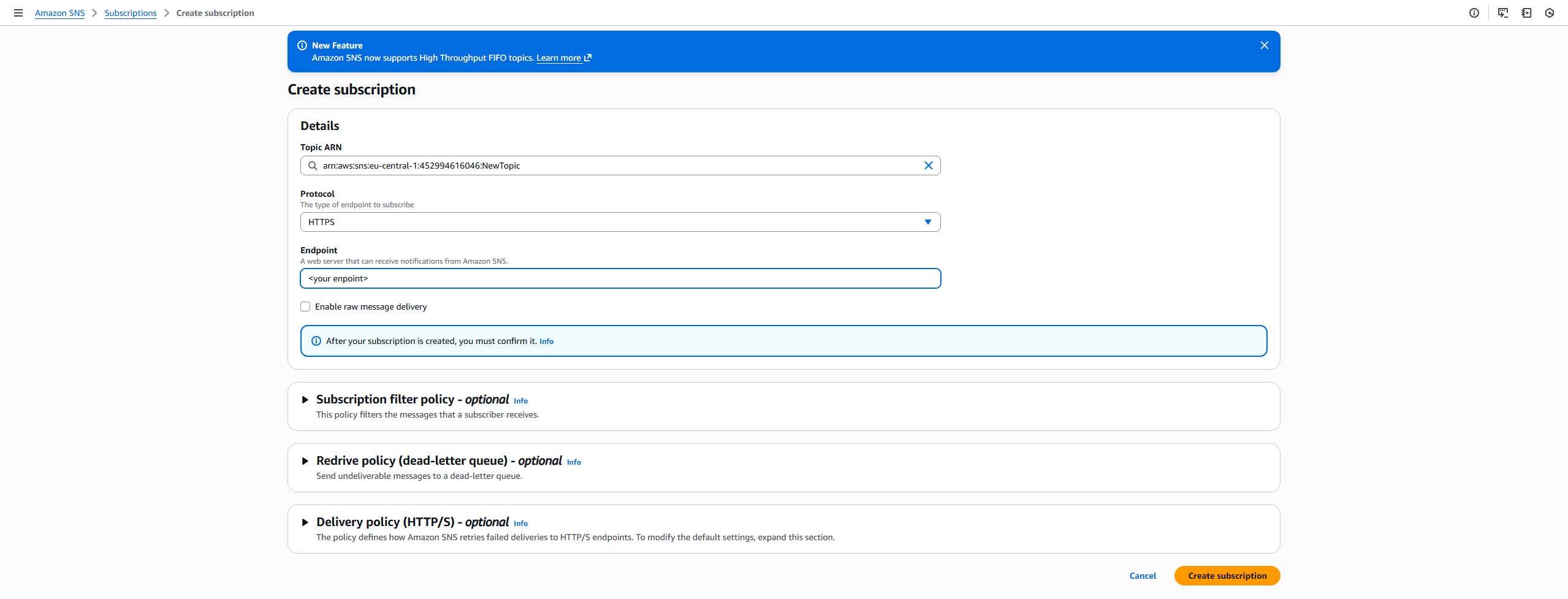
Before this subscription works you need to confirm it. A confirmation request is send after you created it, but you can resend it in the dashboard if needed.
In your empty endpoint implementation we added a log. AWS sends an payload body in following format:
{
  "Message": "You have chosen to subscribe to the topic arn:aws:sns:<location>:<id>:NewTopic.
  To confirm the subscription, visit the SubscribeURL included in this message.",
  "MessageId": "<message-id>",
  "Signature": "<signature>",
  "SignatureVersion": "1",
  "SigningCertURL": "<signing-cert>",
  "SubscribeURL": "<subscription-url>",
  "Timestamp": "<timestamp>",
  "Token": "<token>",
  "TopicArn": "arn:aws:sns:<location>:<id>:NewTopic",
  "Type": "SubscriptionConfirmation",
}
You can either get this out of your logs or get the needed information by filtering the Type for SubscriptionConfirmation in your endpoint. The important information is the SubscribeURL. To confirm the subscription you just need to open that URL.
3. GameSession Placement Queue
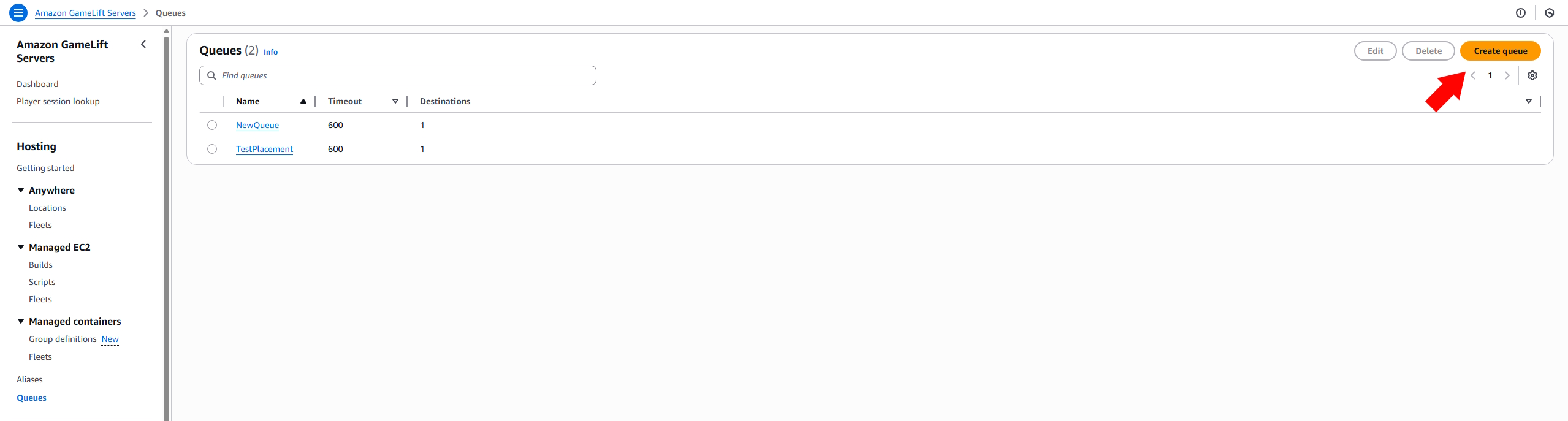
When using matchmaking, you can choose whether AWS handles game session creation automatically or if you manage it manually. In this guide, we use Managed FlexMatch, which requires a placement queue. When a match is found, AWS places a request into this queue. Once it reaches the top and server capacity is available, a new game session is created. You can also enable notifications for the queue to track updates on queued or created sessions. To begin, open the queues dashboard and click Create queue.
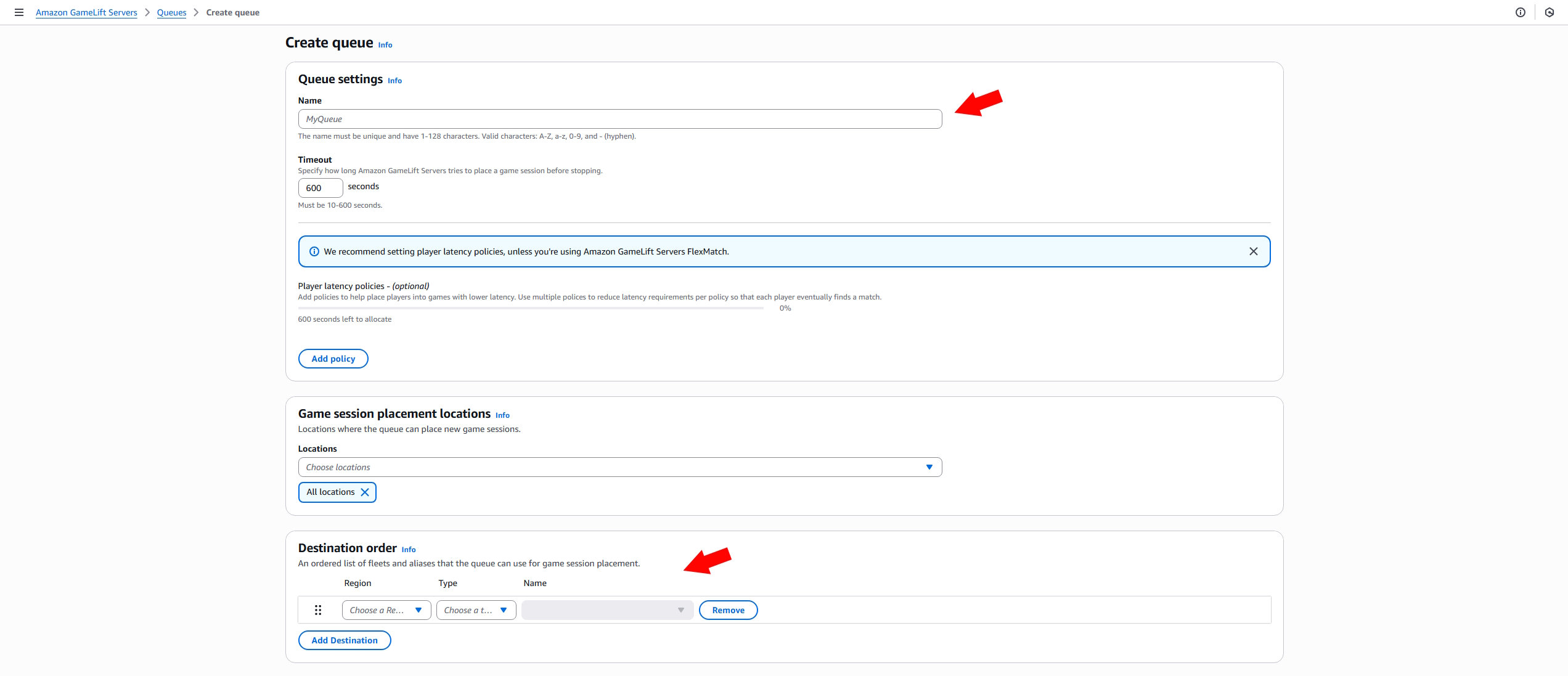
Provide a name for your queue and define the destination order. You must add at least one fleet or alias—such as your AnywhereFleet or OdinFleet—to the destination list so the queue knows where to host the sessions. Other settings can remain at their default values.
Keep in mind that while AWS automates the creation of game sessions, you are responsible for ensuring GameSessions are properly terminated when finished. This is necessary to free up server capacity for new matches.
4. Configuration and rule sets
Rule Sets
To complete the setup we create the matchmaking configuration and ruleset before we add code to the subscription endpoint.
On your GameLift dashboard, navigate to Matchmaking rule sets and crete a new matchmaking rule set.
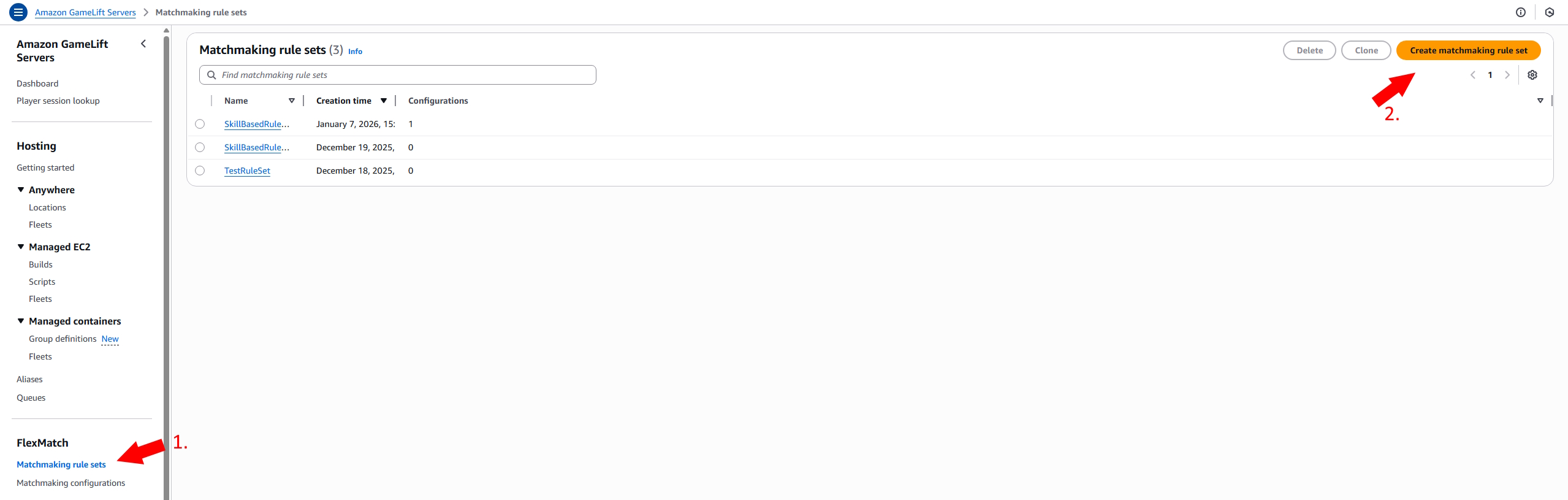
In the next step you need to choose a template. AWS offers some predefined rule sets you can choose from. In this example we choose From scratch and define a very small custom rule set.
Give your rule set a name and fill in the rules as JSON.
{
  "name": "SkillBasedRuleset",
  "ruleLanguageVersion": "1.0",
  "playerAttributes": [
    { "name": "skill", "type": "number", "default": 1000 },
    { "name": "gamemode", "type": "string" }
  ],
  "teams": [
    { "name": "players", "minPlayers": 2, "maxPlayers": 8 }
  ],
  "rules": [
    {
      "name": "SameGameMode",
      "description": "All players must request the same gamemode",
      "type": "comparison",
      "operation": "=",
      "measurements": [
        "flatten(teams[*].players.attributes[gamemode])"
      ]
    },
    {
      "name": "SkillRange",
      "description": "All players must have similar skill",
      "type": "batchDistance",
      "batchAttribute": "skill",
      "maxDistance": 200
    }
  ]
}
This ruleset pairs players who are requesting the same game mode and have a skill rating within a maximum difference of 200. These are custom attributes defined by the developer and are sent by the game client via the StartMatchmakingCommand as part of the Players attribute map.
Once these conditions are met, AWS considers the matchmaking successful. For example, if your ruleset defines a minimum of one player, the search will conclude immediately after you join because the criteria are already satisfied.
If you want to get more information on how to design a rule set, please check the Flexmatch rule setdocumentation.
Matchmaking configuration
Navigate to Matchmaking configurations and select Create matchmaking configuration. Provide a name and select your previously created ruleset. Set the FlexMatch mode to Managed. Choosing "Standalone" would require you to handle game session placement manually. Since we are using Managed mode, you must also specify the placement queue that targets your AnywhereFleet and OdinFleet.
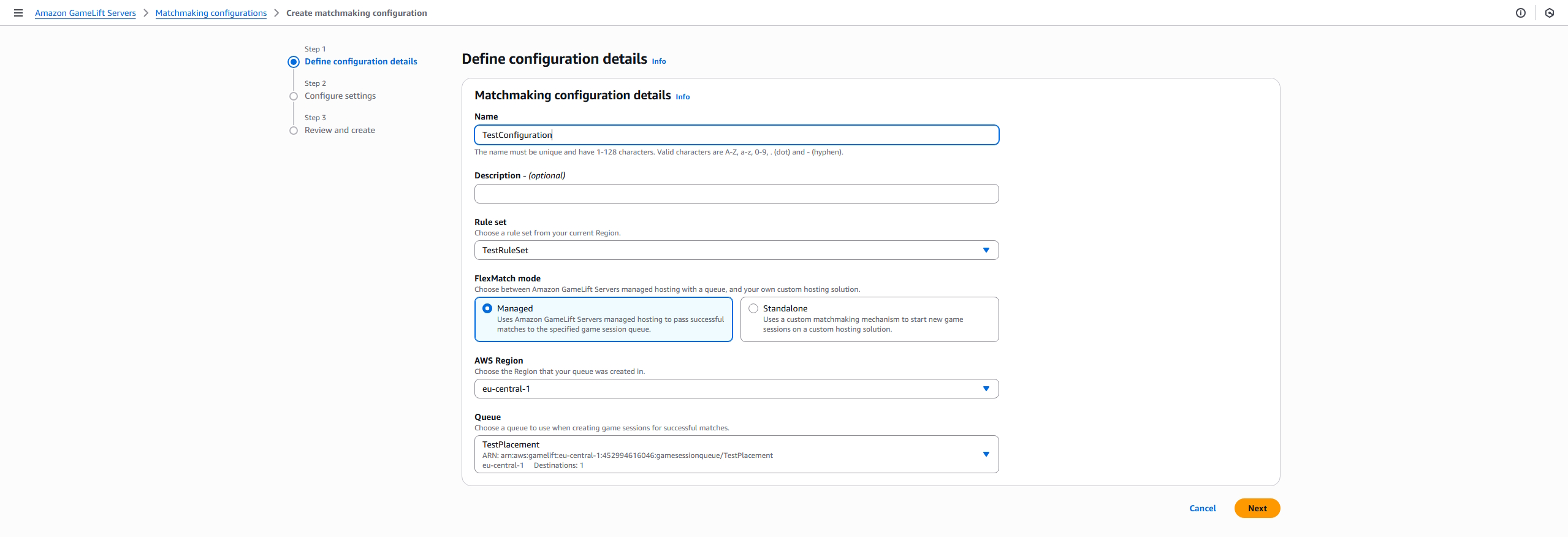
Next, define your configuration settings.
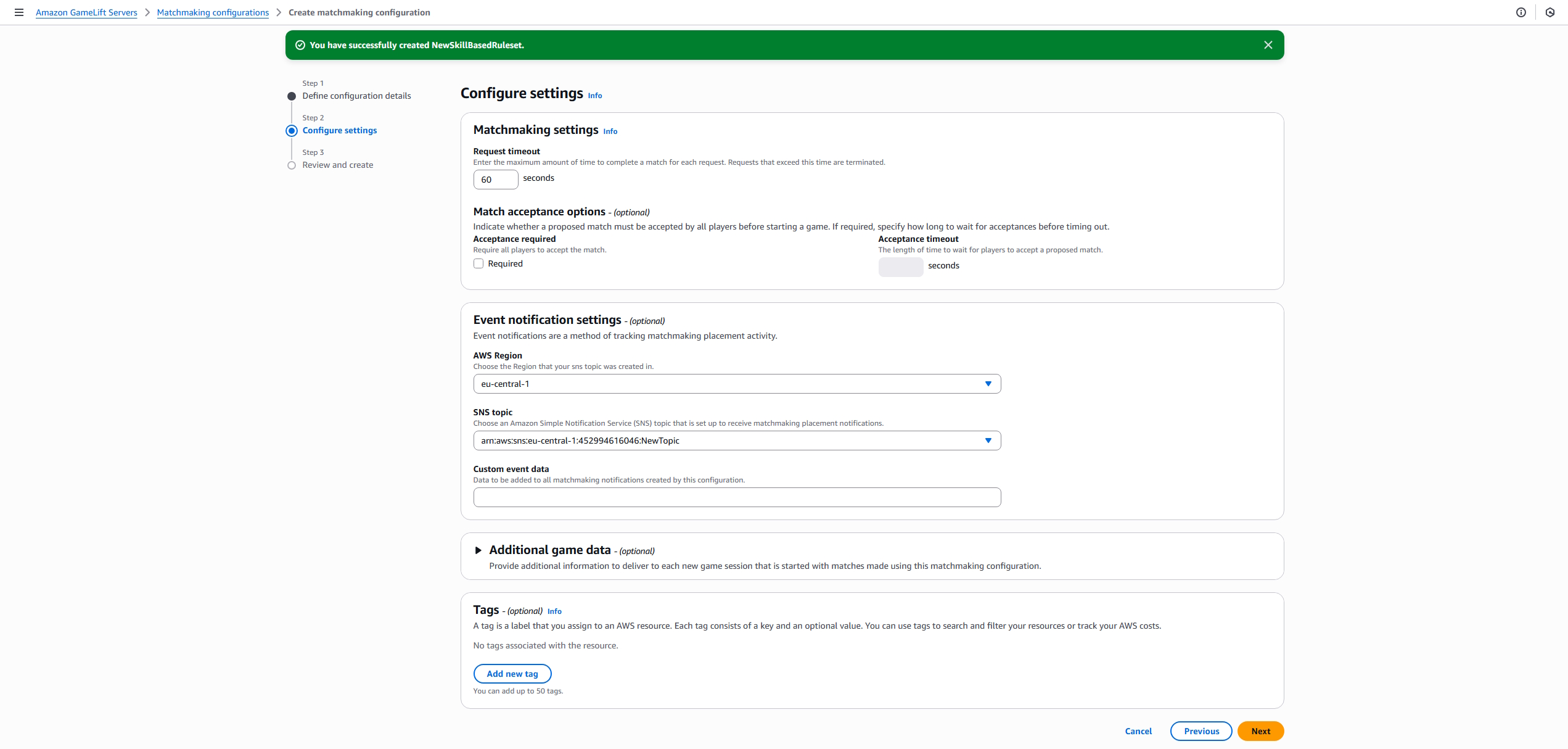
The Request timeout determines how long AWS attempts to find a match for a StartMatchmaking request before it expires. While you can enable Acceptance required to force players to confirm a match, we will leave this unchecked to keep the workflow simple.
Important: Configure the Event notification settings by selecting the region and the SNS notification topic you created earlier. Once saved, AWS will automatically broadcast matchmaking events to the subscription linked to your backend service.
The matchmaking notification payload is a JSON object structured as follows:
{
   "version":"0",
   "id":"<id>",
   "detail-type":"GameLift Matchmaking Event",
   "source":"aws.gamelift",
   "account":"<account-id>",
   "time":"2026-01-07T17:54:34.901Z",
   "region":"eu-central-1",
   "resources":[
      "<configuration-arn>"
   ],
   "detail":{
      "tickets":[
         {
            "ticketId":"<ticket1-id>",
            "startTime":"2026-01-07T17:54:28.699Z",
            "players":[
            {
               "playerId":"<player1-id>",
               "playerSessionId":"<player1-session-id>",
               "team":"players"
            }
            ]
         },
         {
            "ticketId":"<ticket2-id>",
            "startTime":"2026-01-07T17:54:32.365Z",
            "players":[
               {
                "playerId":"<player2-id>",
                "playerSessionId":"<player2-session-id>",
                "team":"players"
               }
            ]
         }
      ],
      "type":"MatchmakingSucceeded",
      "gameSessionInfo":{
         "gameSessionArn":"<gamesession-arn>",
         "ipAddress":"<ipAddress>",
         "port":Number(<port>),
         "players":[
            {
               "playerId":"<player1-id>",
               "playerSessionId":"<player1-session-id>",
               "team":"players"
            },
            {
               "playerId":"<player2-id>",
               "playerSessionId":"<player2-session-id>",
               "team":"players"
            }
         ]
      },
      "matchId":"<match-id>"
   }
}
The fields present in the notification payload depend on the event type. You can filter for the following types to manage the matchmaking lifecycle:
- MatchmakingSearching:
A group of at least one player called
StartMatchmaking.
- PotentialMatchCreated:
Triggered when AWS finds a group of players that satisfy your ruleset. If your configuration does not require player acceptance, this event can generally be ignored. It includes a list of potential players and their associated ticket IDs.
- MatchmakingSucceeded:
Triggered when a match is finalized. This notification includes the connection details (IP address and port) and a list of all matched players. Note that if you are using Standalone mode, connection info will be absent as you are responsible for game session placement.
- MatchmakingTimedOut:
Triggered when the matchmaking request exceeds the timeout limit without finding a valid match.
- MatchmakingCancelled:
Triggered when a client or service manually cancels an active matchmaking ticket.
Now we can add logic to our notification endpoint.
exports.MatchmakingPlacement = onRequest({region:GCloudRegion},async (req,res)=>{
    const snsBody = JSON.parse(req.body);
    console.log(snsBody);
    const message = JSON.parse(snsBody.Message);
    const detail = message.detail;
    switch (detail.type) {
        case "MatchmakingSearching":
            var Tickets = detail.tickets;
            for(let i = 0; i < Tickets.length; i++){
                let element = Tickets[i];
                element.Status = "SEARCHING";
                element.timestamp = Timestamp.now();
                await db.collection('Matchmaking').doc(element.ticketId).create(element);
            }
            break;

        case "PotentialMatchCreated":
            var Tickets = detail.tickets;
            for(let i = 0; i < Tickets.length; i++){
                let element = Tickets[i];
                element.Status = "POTENTIAL_MATCH";
                element.timestamp = Timestamp.now();
                element.matchId = detail.matchId;
                element.acceptanceRequired = detail.acceptanceRequired;
                if(detail.acceptanceRequired == true){
                    await db.collection('Matchmaking').doc(element.ticketId).update(element);
                }
            }
            break;

        case "MatchmakingSucceeded":
            var Tickets = detail.tickets;
            var gamesessionInfo = detail.gameSessionInfo;
            for(let i = 0; i < Tickets.length; i++){
                var element = Tickets[i];
                element.Status = "MATCHMAKING_SUCCESSFULL";
                element.timestamp = Timestamp.now();
                element.matchId = detail.matchId;
                element.ipAddress = gamesessionInfo.ipAddress;
                element.port = gamesessionInfo.port;
                element.gameSessionArn = gamesessionInfo.gameSessionArn;
                await db.collection('Matchmaking').doc(element.ticketId).update(element);
            }

            break;

        case "MatchmakingTimedOut":
            var Tickets = detail.tickets;
            for(let i = 0; i < Tickets.length; i++){
                var element = Tickets[i];
                element.Status = "TIMEOUT";
                element.timestamp = Timestamp.now();
                await db.collection('Matchmaking').doc(element.ticketId).update(element);
            }
            break;
        case "MatchmakingCancelled":
            var Tickets = detail.tickets;
            for(let i = 0; i < Tickets.length; i++){
                var element = Tickets[i];
                element.Status = "CANCELLED";
                element.timestamp = Timestamp.now();
                await db.collection('Matchmaking').doc(element.ticketId).update(element);
            }
        default:
            break;
    }
    return res.status(200).send("ok");
});
This logic saves the status of each ticket into a database, allowing the client to track its matchmaking progress using the ticketId without interacting with the GameLift API directly.
If you are hosting your own Node.js service, you could use WebSockets to push these updates to the client in real-time. However, since Firebase lacks a native SDK for Unreal Engine, we use the database as a middleman for the client to poll. To keep communication efficient, we provide a dedicated status endpoint. The client sends an array of ticket IDs to this endpoint, which retrieves the current status for each ticket from the database and returns them in a single response.
exports.GameLiftCheckMatchmakingTicket = onRequest({region:GCloudRegion},async(req,res) =>{
if(req.body.TicketIds == undefined){
res.status(403).send("Missing TicketIds");
return;
}
if(req.body.TicketIds.length == 0){
res.status(403).send("No TicketIds");
return;
}
const ticketIds = req.body.TicketIds;
const TicketPromises = [];
for(let i = 0; i < ticketIds.length; i++){
TicketPromises.push(db.collection('Matchmaking').doc(ticketIds[i]).get());
}
let Tickets = await Promise.all(TicketPromises);
let result = {TicketList:[]};
for (let i = 0; i < Tickets.length; i++) {
const element = Tickets[i];
result.TicketList.push(element.data())
}
return res.status(200).send(result);
});
To keep this example simple, it does not contain any checking logic and just returns all entries from the database for each given ticketId.
5. Usage in the Game Client
With the infrastructure in place, the final step is integrating the workflow into your game client. To manage the matchmaking lifecycle, the client primarily interacts with two functions:
-
StartFlexMatch: Call this endpoint to initiate a matchmaking attempt and receive a ticket ID.
-
GameLiftCheckMatchmakingTicket: Call this endpoint periodically to poll the database for status updates on the active ticket.
StartFlexMatch
We implement this in an C++ Function Library to expose it to Unreal Blueprints.
void UGLBSServiceConnector::StartMatchmaking(FMatchMakingTiketResult OnTicketCreated, FString PlayerId,
    FString GameMode, int32 skillLevel)
{
    TSharedPtr<FJsonObject> PlayerData = MakeShared<FJsonObject>(); // create the input object for the StartMatchmakingCommand

    TSharedPtr<FJsonObject> PlayerAttributes = MakeShared<FJsonObject>();

    const TSharedPtr<FJsonObject> Skill = MakeShared<FJsonObject>();
    Skill->SetNumberField(TEXT("N"), skillLevel);

    const TSharedPtr<FJsonObject> GameModeAttr = MakeShared<FJsonObject>();
    GameModeAttr->SetStringField(TEXT("S"), GameMode);

    PlayerAttributes->SetObjectField(TEXT("skill"),Skill);
    PlayerAttributes->SetObjectField(TEXT("gamemode"),GameModeAttr);
    const TSharedPtr<FJsonObject> Latency = MakeShared<FJsonObject>();
    Latency->SetNumberField(TEXT("eu-central-1"),12);

    PlayerData->SetStringField(TEXT("PlayerId"),PlayerId);
    PlayerData->SetObjectField(TEXT("PlayerAttributes"),PlayerAttributes);
    PlayerData->SetObjectField(TEXT("Latency"),Latency);
    TSharedPtr<FJsonObject> JsonData = MakeShared<FJsonObject>();

    TArray<TSharedPtr<FJsonValue>> Players;
    Players.Add(MakeShared<FJsonValueObject>(PlayerData));
    JsonData->SetArrayField(TEXT("PlayerData"),Players);
    JsonData->SetStringField(TEXT("Config"),"NewConfiguration"); /// here you should paste the name of your AWS Matchmaking Configuration, this can alse be a parameter

    TSharedRef<IHttpRequest, ESPMode::ThreadSafe> Request = GetPostRequest("<your start matchmaking endpoint url>",JsonData);
    Request->OnProcessRequestComplete().BindLambda([OnTicketCreated](FHttpRequestPtr, FHttpResponsePtr Response,bool bOK)
    {
        const FString ResponseString = Response->GetContentAsString();
        TSharedRef<TJsonReader<>> Reader = TJsonReaderFactory<>::Create(ResponseString);
        TSharedPtr<FJsonObject> Json;
        if (!FJsonSerializer::Deserialize(Reader,Json) || !Json.IsValid())/// if no valid JSON is returned
        {
            FMatchmakingTicket data;
            OnTicketCreated.Execute(data,true,EGameLiftExceptionsBP::Exception);
            return;
        }
        if (Json->HasField(FString(TEXT("MatchmakingTicket"))))
        {
            FMatchmakingTicket data;
            TSharedPtr<FJsonValue> GameSessionsJson = Json->GetField(FString(TEXT("MatchmakingTicket")),EJson::Object);
            data = CreateMatchmakingTicketDataFromJson(GameSessionsJson);
            OnTicketCreated.Execute(data,false,EGameLiftExceptionsBP::None);
            return;
        }
        FMatchmakingTicket data;
        OnTicketCreated.Execute(data,false,EGameLiftExceptionsBP::None);
    });
    Request->ProcessRequest();
}
This function accepts four parameters to initiate the matchmaking process:
- Dynamic Delegate: Triggered once the endpoint returns a result.
- PlayerId: The unique identifier for the local player.
- GameMode: The selected game mode to filter matches.
- skillLevel: The player's numerical skill rating used for pairing.
While this example uses a single ID, PlayerId can also be passed as an array to support groups or parties. If you want to start matchmaking for multiple players simultaneously, simply modify the code to accept a list of IDs. The JsonData object constructed at the start of the function follows the standard input structure defined in the AWS StartMatchmakingCommand documentation.
{
"TicketId": "STRING_VALUE",
"ConfigurationName": "STRING_VALUE",
"Players": [
{
"PlayerId": "STRING_VALUE",
"PlayerAttributes": {
"<keys>": {
"S": "STRING_VALUE",
"N": Number("double"),
"SL": [
"STRING_VALUE",
],
"SDM": {
"<keys>": Number("double"),
},
},
},
"Team": "STRING_VALUE",
"LatencyInMs": {
"<keys>": Number("int"),
},
},
],
}
Once the endpoint returns a valid response, the matchmaking ticket is parsed into a custom Unreal struct and passed back to the caller through the delegate.
USTRUCT(Blueprintable,BlueprintType)
struct FMatchmakingTicket
{
    GENERATED_BODY()

    UPROPERTY(BlueprintReadOnly)
    FString TicketId;

    UPROPERTY(BlueprintReadOnly)
    FString ConfigurationName;

    UPROPERTY(BlueprintReadOnly)
    FString ConfigurationArn;

    UPROPERTY(BlueprintReadOnly)
    FString Status;

    UPROPERTY(BlueprintReadOnly)
    FString StatusReason;

    UPROPERTY(BlueprintReadOnly)
    FString StatusMessage;

    UPROPERTY(BlueprintReadOnly)
    FDateTime StartTime;

    UPROPERTY(BlueprintReadOnly)
    FDateTime EndTime;

    UPROPERTY(BlueprintReadOnly)
    TArray<FPlayerData> Players;

    UPROPERTY(BlueprintReadOnly)
    FGameSessionConnectionInfo ConnectionInfo;
};

FMatchmakingTicket UGLBSServiceConnector::CreateMatchmakingTicketDataFromJson(
    const TSharedPtr<FJsonValue>& MatchmakingTicketDataJson)
{
    FMatchmakingTicket data;
    TSharedPtr<FJsonObject> obj = MatchmakingTicketDataJson->AsObject();

    if (obj->HasField(TEXT("TicketId")))
    {
        data.TicketId =obj->GetStringField(TEXT("TicketId"));
    }
    if (obj->HasField(TEXT("ConfigurationName")))
    {
        data.ConfigurationName =obj->GetStringField(TEXT("ConfigurationName"));
    }
    if (obj->HasField(TEXT("ConfigurationArn")))
    {
        data.ConfigurationArn =obj->GetStringField(TEXT("ConfigurationArn"));
    }
    if (obj->HasField(TEXT("Status")))
    {
        data.Status =obj->GetStringField(TEXT("Status"));
    }
    if (obj->HasField(TEXT("StatusReason")))
    {
        data.StatusReason =obj->GetStringField(TEXT("StatusReason"));
    }
    if (obj->HasField(TEXT("StatusMessage")))
    {
        data.StatusMessage =obj->GetStringField(TEXT("StatusMessage"));
    }
    if (obj->HasField(TEXT("StartTime")))
    {
        FDateTime Time;
        FDateTime::ParseIso8601(*obj->GetStringField(TEXT("StartTime")),Time);
        data.StartTime =Time;
    }
    if (obj->HasField(TEXT("EndTime")))
    {
        FDateTime Time;
        FDateTime::ParseIso8601(*obj->GetStringField(TEXT("EndTime")),Time);
        data.EndTime =Time;
    }

    if (obj->HasField(TEXT("GameSessionConnectionInfo")))
    {
        FGameSessionConnectionInfo connectionInfo;
        TSharedPtr<FJsonObject> connectionInfoJson = obj->GetObjectField(TEXT("GameSessionConnectionInfo"));
        if (connectionInfoJson->HasField(TEXT("GameSessionArn")))
        {
            connectionInfo.GameSessionArn =connectionInfoJson->GetStringField(TEXT("GameSessionArn"));
        }
        if (connectionInfoJson->HasField(TEXT("IpAddress")))
        {
            connectionInfo.IPAddress =connectionInfoJson->GetStringField(TEXT("IpAddress"));
        }
        if (connectionInfoJson->HasField(TEXT("DnsName")))
        {
            connectionInfo.DnsName =connectionInfoJson->GetStringField(TEXT("DnsName"));
        }
        if (connectionInfoJson->HasField(TEXT("Port")))
        {
            connectionInfo.Port =connectionInfoJson->GetIntegerField(TEXT("Port"));
        }
        data.ConnectionInfo = connectionInfo;
    }
    return data;
}
Check TicketId
Once matchmaking has successfully started, you need to check the ticketId to track its status. This process mirrors the initial matchmaking call: the client invokes the status endpoint and parses the response. The function requires a delegate and an array of ticket IDs as input, returning a corresponding array of Unreal structs populated with the latest ticket data.
void UGLBSServiceConnector::CheckMatchmakingTicket(FDescribeMatchmakingResult OnTicketDescribed,
    TArray<FString> TicketIds)
{
    TSharedPtr<FJsonObject> JsonData = MakeShared<FJsonObject>();
    TArray<TSharedPtr<FJsonValue>> Tickets;
    for (const FString& TicketId : TicketIds)
    {
        Tickets.Add(MakeShared<FJsonValueString>(TicketId));
    }

    JsonData->SetArrayField(TEXT("TicketIds"),Tickets);
    TSharedRef<IHttpRequest, ESPMode::ThreadSafe> Request = GetPostRequest("<your-check-ticketId-endpoint>",JsonData);
    Request->OnProcessRequestComplete().BindLambda([OnTicketDescribed](FHttpRequestPtr, FHttpResponsePtr Response,bool bOK)
    {
        const FString ResponseString = Response->GetContentAsString();
        TSharedRef<TJsonReader<>> Reader = TJsonReaderFactory<>::Create(ResponseString);
        TSharedPtr<FJsonObject> Json;
        if (!FJsonSerializer::Deserialize(Reader,Json) || !Json.IsValid())
        {
            TArray<FMatchmakingTicketSubscriptionResult> data;
            OnTicketDescribed.Execute(data,true,EGameLiftExceptionsBP::Exception);
            return;
        }
        if (Json->HasField(FString(TEXT("TicketList"))))
        {
            TArray<FMatchmakingTicketSubscriptionResult> data;
            //TSharedPtr<FJsonValue> GameSessionsJson = Json->GetField(FString(TEXT("TicketList")),EJson::Array);
            TArray<TSharedPtr<FJsonValue>> Tickets = Json->GetArrayField(TEXT("TicketList"));
            for (const TSharedPtr<FJsonValue>& TicketId : Tickets)
            {
                FMatchmakingTicketSubscriptionResult ticketdata;
                const TSharedPtr<FJsonObject> ticketObj = TicketId->AsObject();
                ticketdata.Status = ticketObj->GetStringField(TEXT("Status"));

                TArray<TSharedPtr<FJsonValue>> players = ticketObj->GetArrayField(TEXT("players"));
                for (const TSharedPtr<FJsonValue>& player : players)
                {
                    FPlayerData playerData;
                    TSharedPtr<FJsonObject> playerObj = player->AsObject();
                    playerData.PlayerId = playerObj->GetStringField(TEXT("playerId"));
                    if (playerObj->HasField(TEXT("team")))
                    {
                        playerData.Team = playerObj->GetStringField(TEXT("team"));
                    }
                    if (playerObj->HasField(TEXT("playerSessionId")))
                    {
                        playerData.PlayerSessionId = playerObj->GetStringField(TEXT("playerSessionId"));
                    }
                    ticketdata.Player.Add(playerData);
                }
                if (ticketObj->HasField(TEXT("acceptanceRequired")))
                {
                    ticketdata.AcceptanceRequired = ticketObj->GetBoolField(TEXT("acceptanceRequired"));
                }
                if (ticketObj->HasField(TEXT("gameSessionArn")))
                {
                    ticketdata.GameSessionArn = ticketObj->GetStringField(TEXT("gameSessionArn"));
                }
                if (ticketObj->HasField(TEXT("ipAddress")))
                {
                    ticketdata.IpAddress = ticketObj->GetStringField(TEXT("ipAddress"));
                }
                if (ticketObj->HasField(TEXT("port")))
                {
                    ticketdata.Port = ticketObj->GetIntegerField(TEXT("port"));
                }
                if (ticketObj->HasField(TEXT("matchId")))
                {
                    ticketdata.MatchId = ticketObj->GetStringField(TEXT("matchId"));
                }
                data.Add(ticketdata);
            }
            OnTicketDescribed.Execute(data,false,EGameLiftExceptionsBP::None);
            return;
        }
        TArray<FMatchmakingTicketSubscriptionResult> data;
        OnTicketDescribed.Execute(data,false,EGameLiftExceptionsBP::None);
    });
    Request->ProcessRequest();
}

USTRUCT(BlueprintType)
struct FMatchmakingTicketSubscriptionResult
{
    GENERATED_BODY()

    UPROPERTY(BlueprintReadOnly)
    FString Status;

    UPROPERTY(BlueprintReadOnly)
    bool AcceptanceRequired = false;

    UPROPERTY(BlueprintReadOnly)
    FString GameSessionArn;

    UPROPERTY(BlueprintReadOnly)
    FString MatchId;

    UPROPERTY(BlueprintReadOnly)
    FString IpAddress;

    UPROPERTY(BlueprintReadOnly)
    int32 Port;

    UPROPERTY(BlueprintReadOnly)
    FString TicketId;

    UPROPERTY(BlueprintReadOnly)
    FString StartTime;

    UPROPERTY(BlueprintReadOnly)
    TArray<FPlayerData> Player;
};
Blueprint implementation
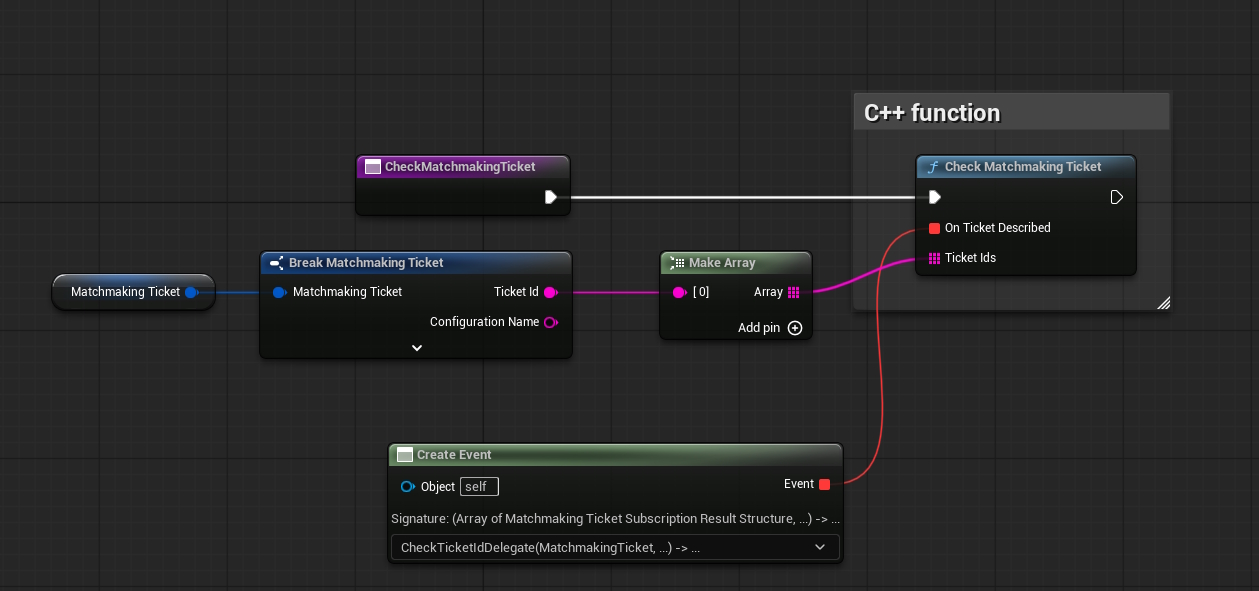
To integrate the code, call the matchmaking function in a Blueprint and begin polling the ticketId once the initial request succeeds. In the following example, we set a timer to check the ticket status every 2 seconds.
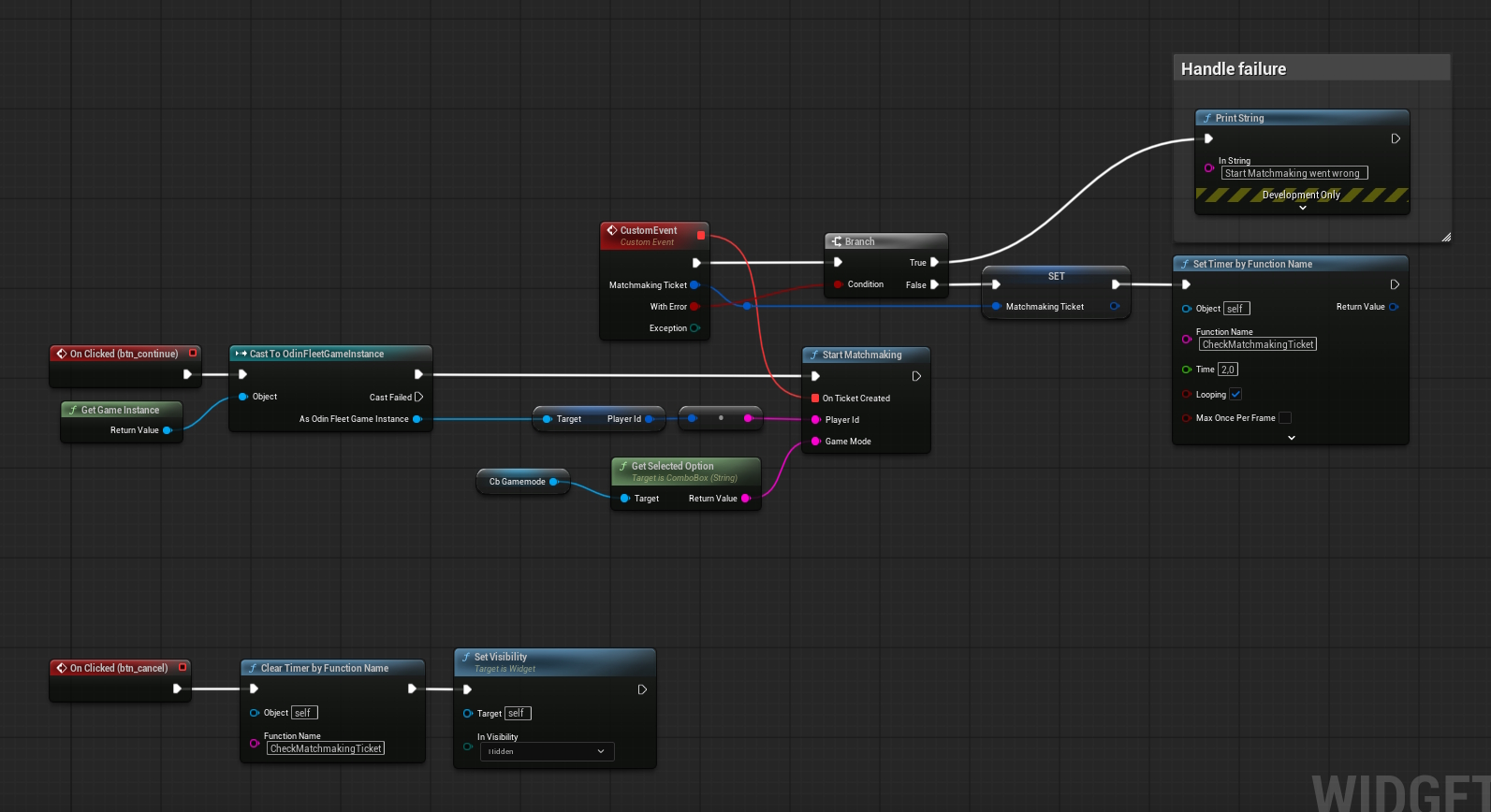
Since we are managing one ticket at a time, we simply create an array with a single entry containing the ticketId returned from the StartMatchmaking result. When the endpoint returns the status, the designated event is triggered.
The event delegate handles the response as follows:
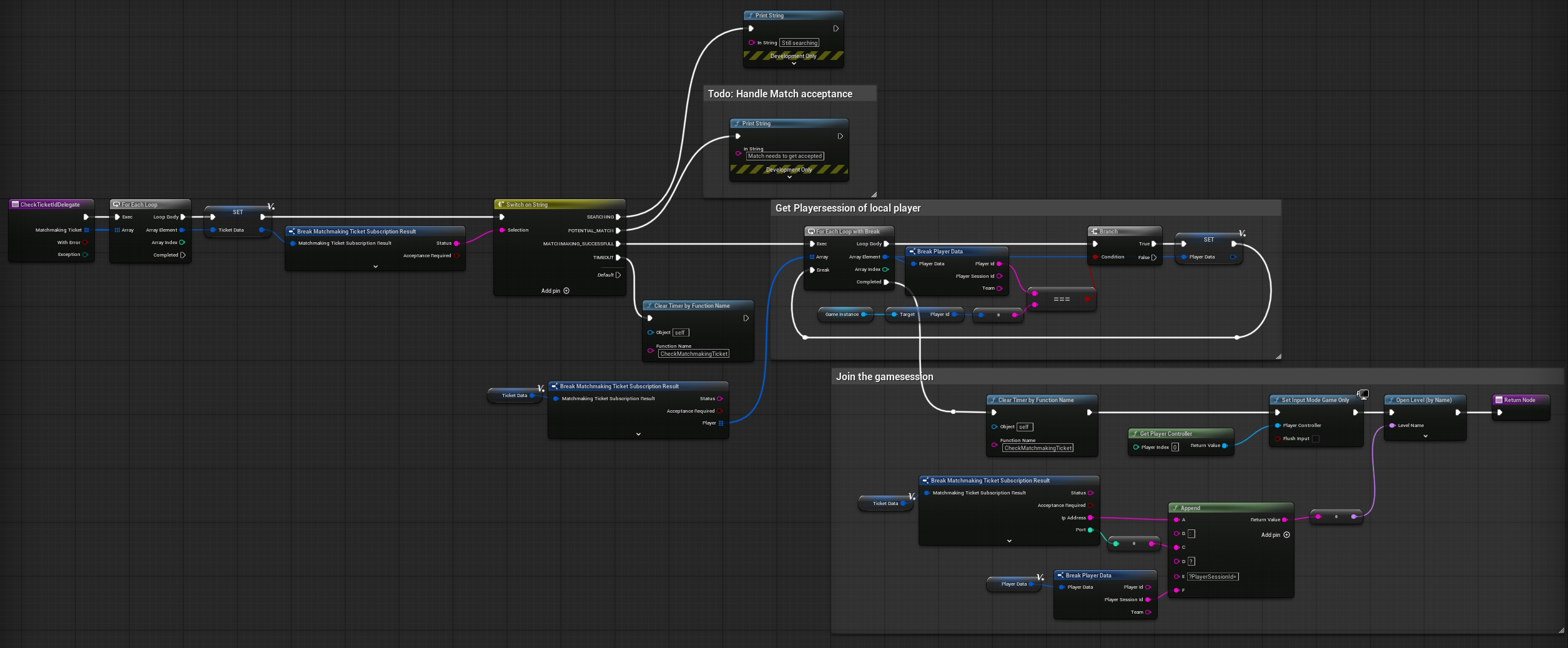
This logic iterates through the returned tickets (only one in this scenario) and if the matchmaking status is successful, the player automatically joins the game session using the provided connection details.