Unreal Minimal Sample
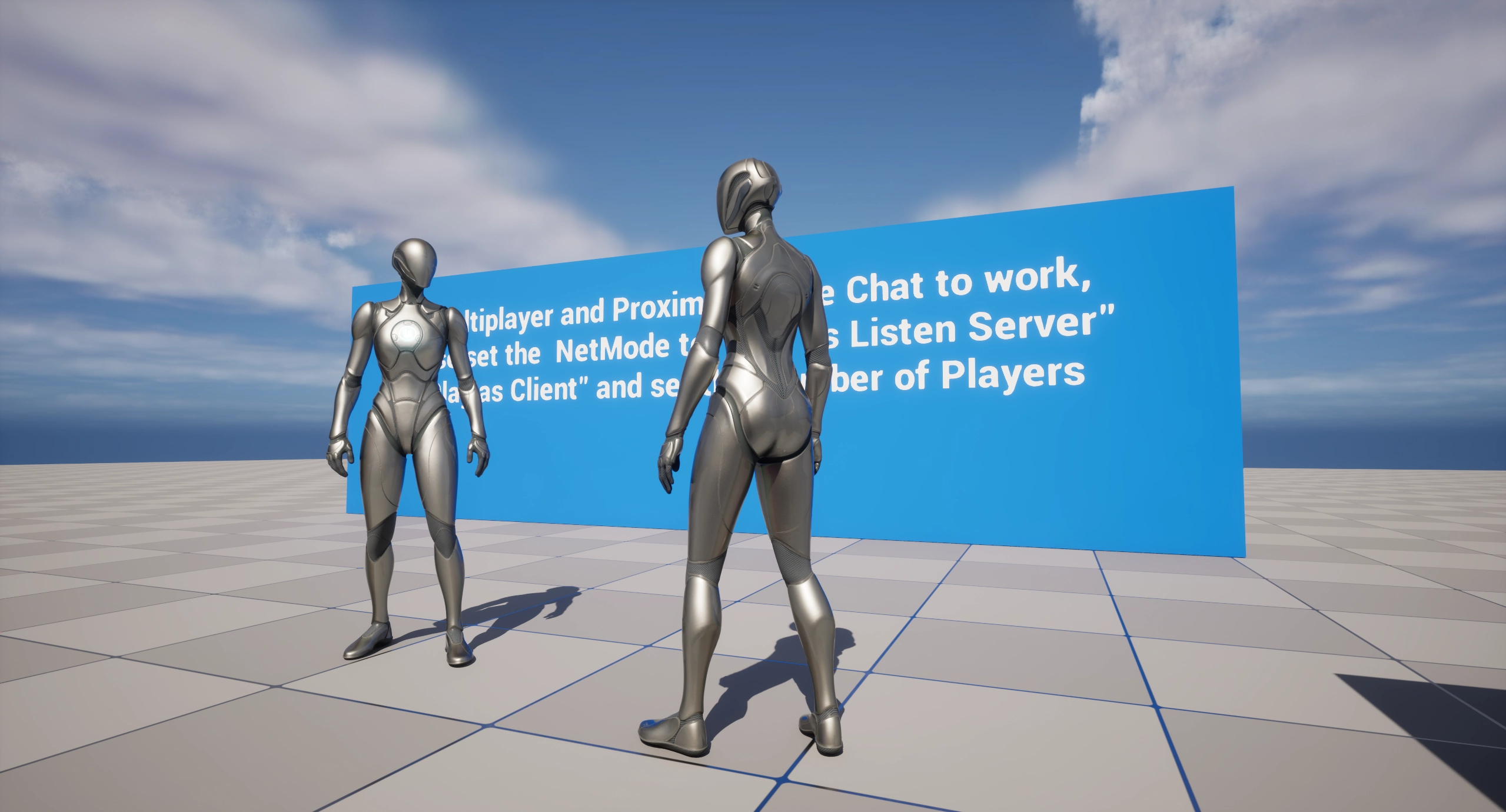
This project offers a simple, yet comprehensive example showcasing the integration of the ODIN Unreal SDK by 4Players for Unreal Engine. For more in-depth information on replication and how to make Proximity Voice Chat work in Unreal, take a look at our Odin Unreal Tutorial series.
Download links
Grab the latest version of the demo from our Github repository:
Get The Source CodeKey Topics Showcased
This sample demonstrates the minimal amount of blueprints needed to use ODIN for both Global or Proximity Voice Chat on different platforms:
- Setting up Odin by creating a new room token, constructing a room handle and joining an Odin room
- Setting up Audio Capture for the local client and linking it to the Odin room.
- Connecting remote media streams to local playback with the Odin Synth Component and destroying local playback when a media stream gets disconnected.
- Proximity Voice Chat: Using RepNotify to synchronize Odin Peers with Unreal Characters. This makes Proximity Voice Chat possible in Multiplayer games.
- Handling Android Permissions.
Getting Started
You'll need the latest Unreal Engine 5 release to start the minimal sample project. The Odin Unreal Plugin in general is compatible with Unreal versions starting with 4.26 - Odin 2 supports Unreal Engine 5.3 and onwards.
This repository uses LFS (large file storage) to manage pre-compiled binaries. Note that a standard clone of the repository might only retrieve the metadata about these files managed with LFS. In order to retrieve the actual data with LFS, please follow these steps:
-
Clone the repository:
-
Cache the actual LFS data on your local machine and replace the metadata in the binary files with their actual contents:
... or if you have a recent LFS version:
Starting the Minimal Multiplayer Sample:
- Open the Map
Content > Odin > Maps > Odin_Multiplayer - In the Play-In-Editor options, change the
Number of Playersto more than 1. - Set the
Net ModetoPlay As Listen ServerorPlay As Client
This will start the Editor in Multiplayer Mode and spawn the given number of Players. By walking to another Player Character, you will be able to hear yourself speaking from the Character's position, showcasing Proximity Voice Chat in Unreal. You can change the Proximity Voice behavior by adjusting the values in the Asset Content > Odin > Blueprints > Multiplayer_Odin_Attenuation.
Starting the Minimal Android Sample:
To test the project on Android, you'll need to adjust the Game Default Map, before packaging and copying a build to your device. Go to Project Settings > Maps & Modes and select the Odin_AndroidMinimal map as the Game Default Map. You're now ready to package and launch the project on your mobile device!
You'll find the utilized Blueprints in the Content > Odin > AndroidMinimal directory. The Game Mode GM_OdinAndroid simply references the Player Controller. The PC_OdinAndroid Player Controller Blueprint derives from the PC_OdinMultiplayer class and contains the important setup logic. There you'll see the blueprint setup for requesting microphone permissions and basic Odin-Setup without attenuation (i.e. proximity voice chat). For more information on the microphone permissions, please take a look at our in-depth guide for setting up Android permissions in Unreal.
Basic Multiplayer Synchronization Principles for Proximity Voice Chat
You can find all the relevant Blueprints regarding Multiplayer Synchronization in the Content > Odin > Multiplayer directory. The Game Mode BP GM_OdinMultiplayer will simply reference the Player Controller and Player Character. The Player Character BP PC_OdinMultiplayer will set up Odin by binding to the relevant events and then joining the Odin room.
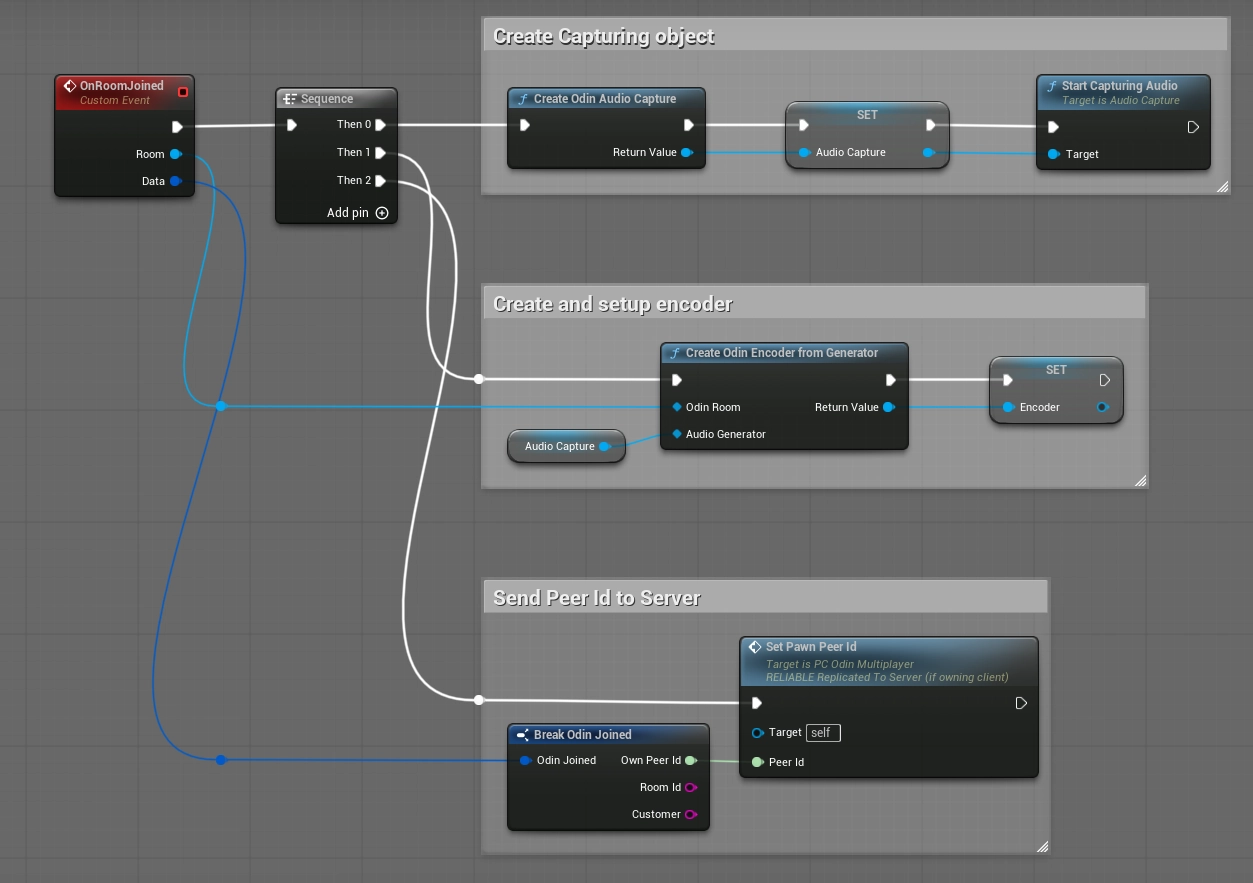
Multiplayer specific code is called first in the On Room Joined event handler. The "Room Joined" callback will provide us with the local player's peer id in the current room. We'll call Set Pawn Peer Id Event on our Player Character, which sets the Peer Id value on the server. The server will then replicate the value to all connected clients. Because we changed the Replication setting of the Peer Id value to RepNotify, any change to the Peer Id value will call the OnRep_PeerId function on all clients. The OnRep_PeerId function was automatically created by Unreal.
Peer Id OnRep Implementation
In the OnRep_PeerId implementation on the Player Character Blueprint we'll want to register the remotely controlled Player Character to the Peer Id that was replicated. First we need to make sure to not register the locally controlled Player Character, because we don't want to hear any Voice from there.
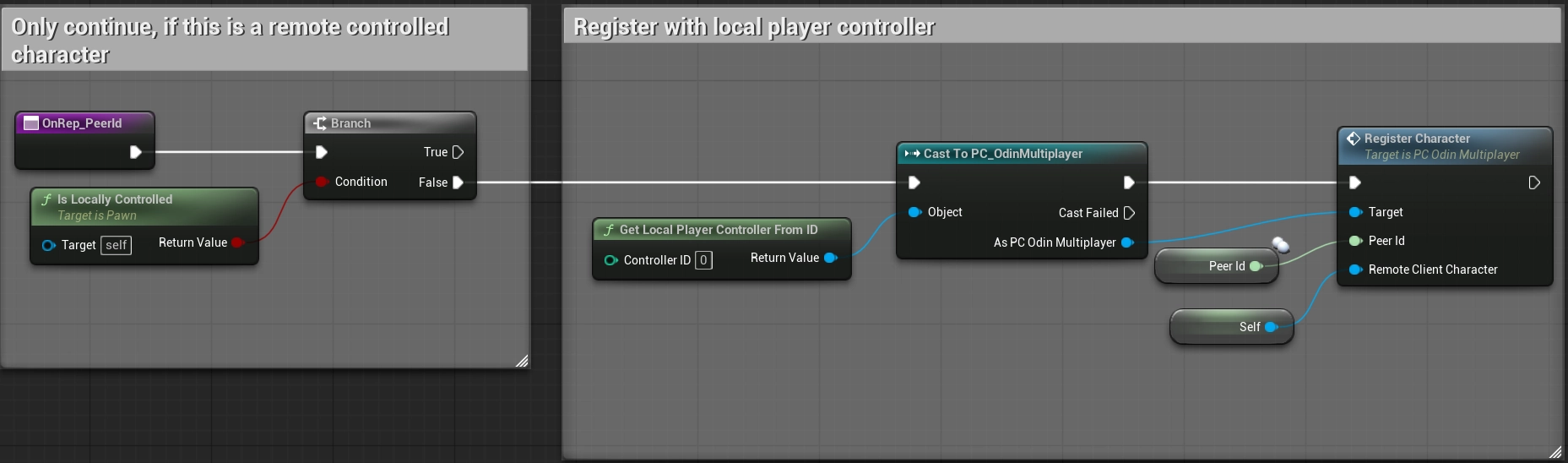
RegisterCharacter is called on our Player Controller.
Registering Remote Characters
The RegisterCharacter function on the Player Controller simply stores the calling Player Character in a map, with the supplied Odin peer id being the key. After that we try setting up audio playback.
In the OnRoomPeerJoined event callback, we first check if there was already a call to RegisterCharacter performed. If yes, we already have access to the remotely controlled Player Character of the Peer that just joined the room. We can then continue with setting up the audio playback.
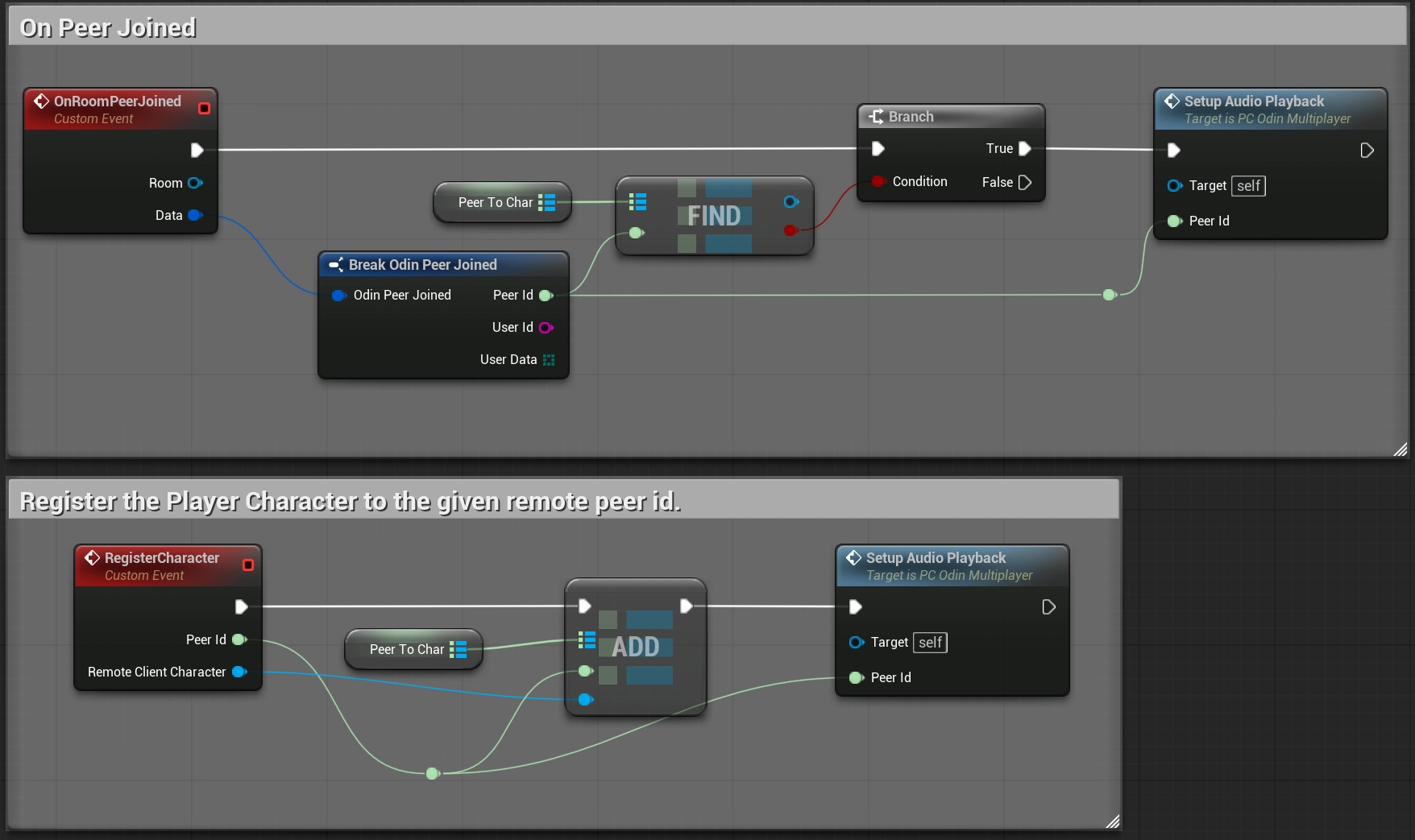
We try setting up the audio playback in both these functions, because we don't know which one will be called first. If the OnRoomPeerJoined event is called first, we won't yet have access to the remotely controlled Player Character of the Peer that just joined the room. In this case we'll have to wait for the OnRep_PeerId event to be called, before we can set up the audio playback.
If the OnRep_PeerId is called first, we already have acces to the remotely controlled character, but we can't yet setup the Odin Decoder for playback, because the remote peer has not yet joined the Odin room.
Setting up Audio Playback

Before setting up the audio playback, we will first check if we already have access to the remotely controlled Player Character that corresponds to the Odin Peer for which we want to setup audio. If yes, we construct a new decoder, register it and then request that a new Odin Synth Component is created on the Player Character and connected to the newly created Odin Decoder.
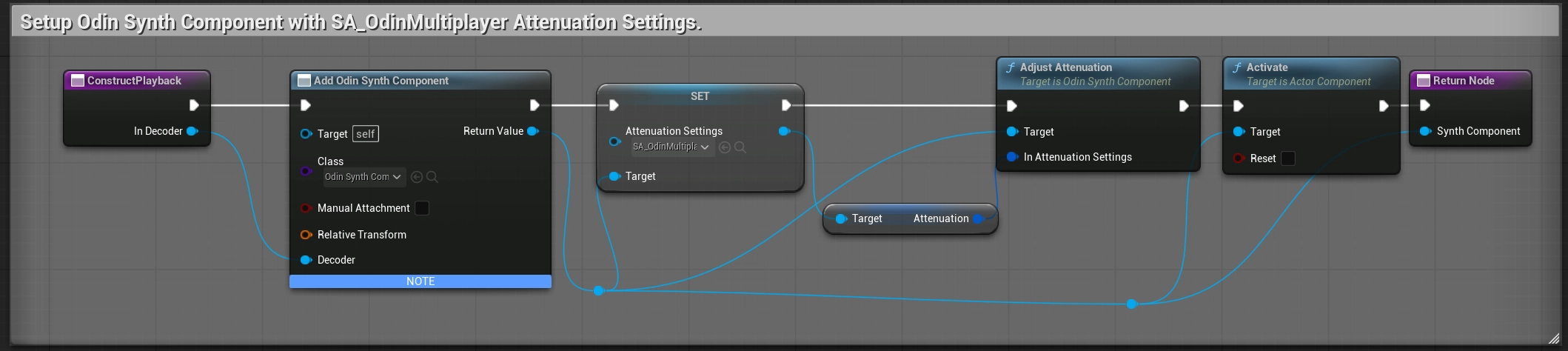
In the ConstructPlayback function, we'll call Add Component by Class, select Odin Synth Component as class and connect the Decoder input. After creation, we'll setup the Synth Components attenuation settings, so that the audio played back from the character is attenuated in a way that it sounds like the voice is coming from the character's position. Take a look at the Attenuation Settings Asset in Odin > Multiplayer > SA_OdinMultiplayer.
More information
For more in-depth information on replication and how to make Proximity Voice Chat work in Unreal, take a look at our Odin Unreal Youtube Tutorial series, specifically the Spatial Audio video.
Basic Setup without Multiplayer Synchronization
The Blueprint PC_OdinAndroid will show how to setup a simple connection to an Odin room, without using Spatializaiton for Proximity Voice Chat. The setup in this case is less complicated, because we don't need to replicate the Odin Peer Id from the dedicated server to the clients' Player Characters. Instead we simply create an OdinSynthComponent for each Media that connects to our Odin room on the local Player Controller.
The implementation shown in PC_OdinAndroid will work on every platform. If the nodes are called on another platform, the Android Permission steps will simply be skipped.