ODIN Voice - Unreal SDK - FAQ
Are there any dependencies to other plugins?
Yes, ODIN uses Epic's official Audio Capture Plugin to capture audio from input devices, such as microphones. Users
have the option to either use the default Audio Capture object provided by the Create Audio Capture method, or the extended
Odin Audio Capture object. We recommend using
Create Odin Audio Capture due to its superior features, such as the ability to switch capture devices on supported
platforms and enhanced Push-To-Talk functionality.
Other than that, ODIN defaults to Unreal's standard audio playback, meaning any voice data played in-game is managed like any other audio source in Unreal. This makes it possible to implement exciting features like Proximity Voice Chat and manage settings like Volume controls using Unreal's existing solutions.
Blueprint Only Projects: My packaged builds crash right after start-up, what do I do?
When the "Odin" plugin is installed directly into a Blueprint Only Unreal Engine project, you may encounter an error when trying to run packaged standalone builds. The error message typically states:
Plugin 'Odin' failed to load because module 'Odin' could not be found. Please ensure the plugin is properly installed, otherwise consider disabling the plugin for this project.
This issue occurs because Unreal Engine processes Blueprint Only projects differently, and fails to correctly package C++ plugins that are installed directly within the project.
Options for Resolving the Issue:
To resolve this issue, there are two options:
- Install the Plugin in the Engine: By installing
Odindirectly into the Unreal Engine's installation directory, Unreal will use a different method to package theOdinmodule when building a Standalone Version of your project. This method ensures that all required modules are accessible. To install the plugin in the engine you can either:
Use the Marketplace to install the Odin plugin
- Alternatively, download the appropriate version of the
Odinplugin from the Odin SDK Unreal Releases Github page. Extract the plugin into the Engine's marketplace plugins directory, which is typically located at.../Epic Games/UE_x.xx/Engine/Plugins/Marketplace
- Convert Your Blueprint Only Project to a C++ Project: Adding C++ files to your project enables support for C++ based plugins like Odin being directly installed in your project folder. Here’s how to perform this conversion inside the Unreal Engine Editor:
- In the Unreal Editor, navigate to
Tools > New C++ Class > Choose Parent Class None - Give the class a name (e.g.
Empty) and pressCreate Class. - Close down the Editor and open up the newly created
Odin_Minimal.slnin your IDE - Build the project (Visual Studio hotkey is
Ctrl+Shift+B)
Follow-Up Steps:
After following one of the solutions above, perform the following steps to ensure the Odin plugin loads correctly:
- Open your Unreal project. If prompted, rebuild the missing modules by clicking
Yes. - Go to
Edit > Pluginsin the Unreal Editor, and make sure that theOdinplugin is enabled. - Attempt to package your project again. The standalone version should now launch successfully without errors.
Following these guidelines will help you successfully integrate the Odin plugin into your Blueprint Only project or adjust your project's setup to meet the plugin's requirements.
Build-error: building for ... but attempting to link with file built for unknown-unsupported file format.
When the "Odin" plugin is installed directly into a Blueprint Only Unreal Engine project, you may encounter an error when trying to run packaged standalone builds. The error message typically states:
Plugin 'Odin' failed to load because module 'Odin' could not be found. Please ensure the plugin is properly installed, otherwise consider disabling the plugin for this project.
This issue occurs because Unreal Engine processes Blueprint Only projects differently, and fails to correctly package C++ plugins that are installed directly within the project.
Options for Resolving the Issue:
To resolve this issue, there are two options:
- Install the Plugin in the Engine: By installing
Odindirectly into the Unreal Engine's installation directory, Unreal will use a different method to package theOdinmodule when building a Standalone Version of your project. This method ensures that all required modules are accessible. To install the plugin in the engine you can either:
- Use the Marketplace to install the Odin plugin
- Alternatively, download the appropriate version of the
Odinplugin from the Odin SDK Unreal Releases Github page. Extract the plugin into the Engine's marketplace plugins directory, which is typically located at.../Epic Games/UE_x.xx/Engine/Plugins/Marketplace
- Convert Your Blueprint Only Project to a C++ Project: Adding C++ files to your project enables support for C++ based plugins like Odin being directly installed in your project folder. Here’s how to perform this conversion inside the Unreal Engine Editor:
- In the Unreal Editor, navigate to
Tools > New C++ Class > Choose Parent Class None - Give the class a name (e.g.
Empty) and pressCreate Class. - Close down the Editor and open up the newly created
Odin_Minimal.slnin your IDE - Build the project (Visual Studio hotkey is
Ctrl+Shift+B)
Follow-Up Steps:
After following one of the solutions above, perform the following steps to ensure the Odin plugin loads correctly:
- Open your Unreal project. If prompted, rebuild the missing modules by clicking
Yes. - Go to
Edit > Pluginsin the Unreal Editor, and make sure that theOdinplugin is enabled. - Attempt to package your project again. The standalone version should now launch successfully without errors.
Following these guidelines will help you successfully integrate the Odin plugin into your Blueprint Only project or adjust your project's setup to meet the plugin's requirements.
How to address build issues with Odin installed in both the Engine and Project.
The Odin plugin can be installed either in the Engine's Marketplace Plugins directory or in your current Unreal Engine Project directory. Installing the plugin in both the Engine Marketplace Plugins folder and the Project's Plugins folder can cause conflicts with the UnrealBuildTool. Follow these steps to make sure the plugin is installed correctly and to resolve build issues:
Installation and Troubleshooting:
- Close Your Project: Ensure that Unreal Engine is not running and your project is closed.
- Clean Temporary Folders: Navigate to your project directory and delete the
Binaries,Build,DerivedDataCache, andIntermediatefolders. - Remove Redundant Plugin Installations: Ensure that the Odin plugin is only installed in one location.
Remove it from the Engine's Marketplace Plugins folder (typically located at
.../Epic Games/UE_x.xx/Engine/Plugins/Marketplace) if it's already in your Project's Plugins folder. - Download and Install Plugin: Download the latest release of the Odin plugin for your Unreal Engine
version from the Odin SDK Unreal Releases GitHub page.
For a clean install, please make sure to first completely remove the old
Odinplugin folder. Then extract the downloaded release into your Project'sPluginsfolder. The folder hierarchy should look similar to this:../[ProjectName]/Plugins/Odin/Odin.uplugin - Regenerate Project Files: Right-click your project's
.uprojectfile, select "Generate Visual Studio project files", and allow the process to complete. - Open Your Project and Rebuild: Double-click the
.uprojectfile to open your project. If prompted, rebuild the missing modules by clicking 'Yes'. - Reattempt the Build: Try to build a standalone version of your project again to see if the issue is resolved.
Following these steps will ensure that your plugin installation does not interfere with the UnrealBuildTool and your project builds successfully.
LogUObjectGlobals: Warning: [AssetLog] ... Can't find file Error when running a packaged build.
If you encounter a warning that says
while running your packaged Unreal Engine build, it typically indicates issues with asset redirectors. To resolve this, follow these steps:
Fixing Asset Redirectors:
- Open Unreal Editor: Launch your Unreal Editor and open your project.
- Select the Content Folder: In the Content Browser, right-click the root
Contentfolder. - Fix up Redirectors: Choose "Fix up Redirectors" from the context menu. This action helps ensure all references are correctly updated and pointing to the valid assets.
After performing these steps, run your build again to check if the issue is resolved.
Cross-Platform / Cross-Engine is great. Inside the web client I can hear the UE client, but I cannot hear web clients inside the UE client. Why does it not work?
At the moment, the Web Client is not compatible with v2.x of our Unreal Plugin - but compatibility is currently being worked on and available soon!
Each client pushes their own audio data to the room, which is then transmitted to the ODIN server and multicast to every peer in the same room. By creating and linking a Decoder to each remote peer and connecting it to a Synth Component (for example, on a player character), audio communication is enabled among all participants. This setup allows everyone to hear each other, irrespective of the client type they are using.
Usually, every player character inside UE is spawned as soon as it is replicated by the network subsystem. When a ODIN peer joins using a non-UE client (e.g. a web client), you should either spawn a placeholder object or you can attach the synth component of non-UE clients somewhere else when setting up the Decoder and Odin Synth Component.
For instance, you could attach it to your local player character to hear web clients with 2D audio like they are "on the phone". Or you can put a virtual radio box inside the level to let web clients speak through that object. It is also possible to create a second ODIN room (e.g. "global chat") and use it to let all players from all client types communicate in 2D - in addition to the in-game (UE-only) spatial audio voice.
Remember to detach / destroy objects from non-UE ODIN peers when they leave the room, as they will not trigger Unreal Engine replication events.
Do you have sound occlusion built-in?
Yes, the audio is played via a synth component (see Add Odin Synth Component
Do you support Unreal Engine 5.x?
Yes, we do. Our internal development team uses the latest officially released version of Unreal Engine for development. Testing and packaging are done for versions starting from UE 5.3.
I cannot find the Capture Audio nodes?
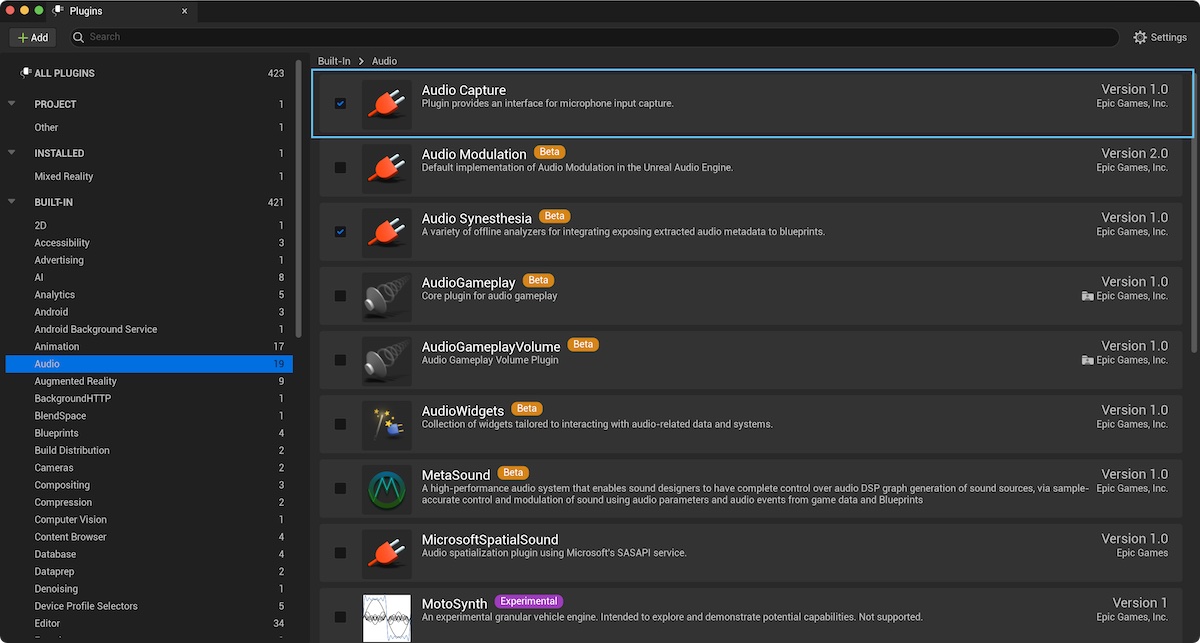
If you have any issues finding nodes in Blueprint, make sure the Audio Capture plugin is enabled. In the Unreal Editor, open Plugins (Menu -> Edit -> Plugins) and make sure that in the Audio Section the Audio Capture plugin is activated like shown in this screenshot:
I'm having Issues with Echo, what can I do?
If you're encountering issues with echo cancellation, we recommend a specific Audio Processing Module (APM) setup to optimize your voice chat experience. A good starting point is to refer to the following APM configuration example, which can serve as a guideline:
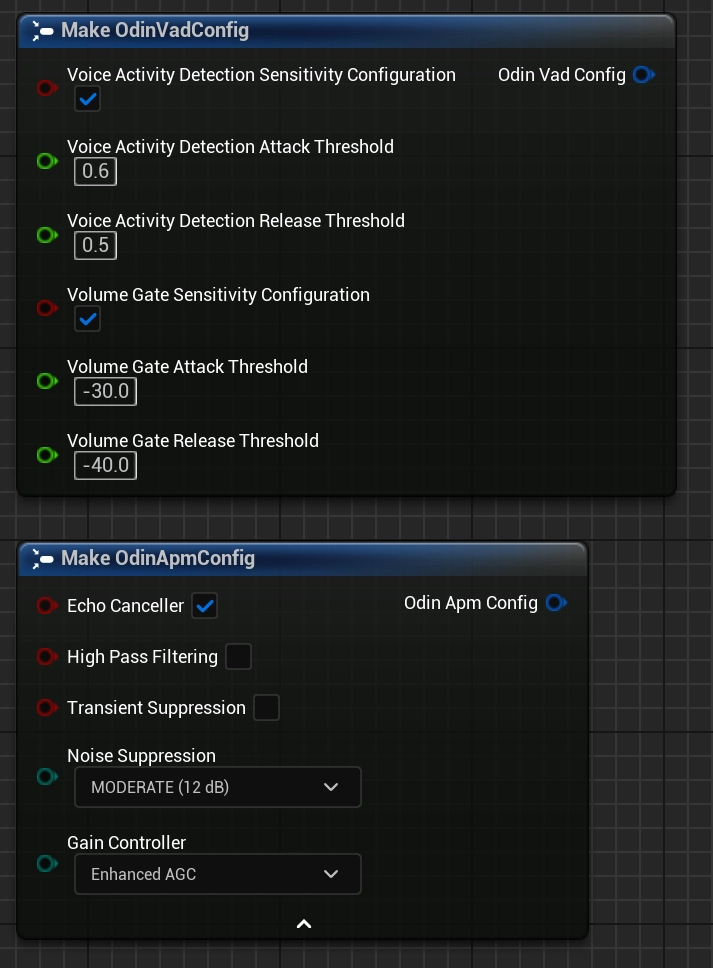
However, since audio performance can vary based on different hardware and environmental conditions, it's beneficial to experiment with the settings to find what works best for your specific use case.
To enhance user experience, consider allowing players to adjust these settings according to their individual hardware setups. When implementing user-adjustable options, it's advisable to streamline the number of controls to avoid overwhelming the user. Here are a couple of suggestions:
- Voice Activity Detection Adjustments: You can provide a single slider for users to adjust the VAD settings. The Attack and Release probabilities should have an offset of 0.1 (e.g., if the Attack is set to 0.6, then the Release should be 0.5). This single slider approach simplifies the user interaction while effectively managing the VAD parameters behind the scenes.
- Volume Gate Settings: For Volume Gate, ensure that the Attack value has an offset of 10 from the Release value (for example, if the Attack is -30, then the Release should be -40). This method maintains a balanced dynamic between the Attack and Release phases, which is crucial for effective volume gating.
These tailored adjustments can significantly improve the audio experience for users.
My blueprint nodes are broken after upgrading to a new Unreal Engine version. What's wrong?
When upgrading to a new version of Unreal Engine, it is crucial to ensure that the Odin plugin is installed before opening your project in the new engine version. Following these steps can prevent the loss of blueprint functionality:
- Pre-upgrade preparation: Before upgrading to a newer Unreal Engine version, confirm that the Odin plugin is available and supported in the new version.
- Install before opening: Install the Odin plugin in the new version of Unreal Engine before opening your project. This helps to ensure that all Odin-related blueprints and functionalities remain intact.
- Delete Intermediate and Binaries folders: To avoid any intermediate files conflicting with newer Engine
or Plugin versions, delete the
Binaries,Build,DerivedDataCache, andIntermediatefolders in your project directory and theBinariesandIntermediatefolders in your[Projectfolder]/Plugins/Odindirectory. - Do not compile without Odin: Avoid compiling any of your blueprint nodes if the Odin plugin is not installed in the new Unreal Engine version. Compiling without the plugin can lead to irreversible damage to Odin-dependent blueprints.
- Handling accidental compiles: If you have accidentally compiled one of your blueprints without the Odin plugin, attempt to revert to a previous stable version of your project using your source control system.
Following these guidelines will help you maintain the integrity of your project and avoid potential setbacks when transitioning between Unreal Engine versions with the Odin plugin installed.
Spatial audio does not work. What is wrong?
If voice chat is functional but voices sound like they are coming from "inside your head" rather than from a specific location in 3D space, it usually means the audio is being played as 2D sound rather than being attached to a world actor.
1. Check the Odin Synth Component
Ensure you have set the correct target for your Odin Synth Component when using the Add Odin Synth Component node.
If you are following the manual's blueprint examples, the most common mistake is attaching Synth Component to the local player controller or the UI, which results in non-spatialized audio.
2. Check the Decoder and Synth Component Mapping
In a multiplayer environment, you must dynamically route audio to the representative character in the world. This is done by mapping the Odin Peer ID to the corresponding Unreal Player ID/Actor/Character. There are multiple approaches to solving this issue - take a look at our comprehensive Unreal Tech Demo Project for a hands-on learning experience on setting up Proximity Voice Chat in a Multiplayer Game. This demo project is designed to guide you through the key steps and considerations for integrating proximity-based voice communications effectively.
For a more interactive learning journey, we also offer an extensive Unreal video tutorial series. This series provides step-by-step instructions on configuring Proximity Voice Chat, ensuring a thorough understanding of the process from start to finish.
3. Configure Sound Attenuation
If everything is connected correctly, more details on Sound Attenuation can be found in the Unreal Engine Sound Attenuation Documentation.
Set Encoder Position does not work or works incorrectly.
Please make sure to follow these tips:
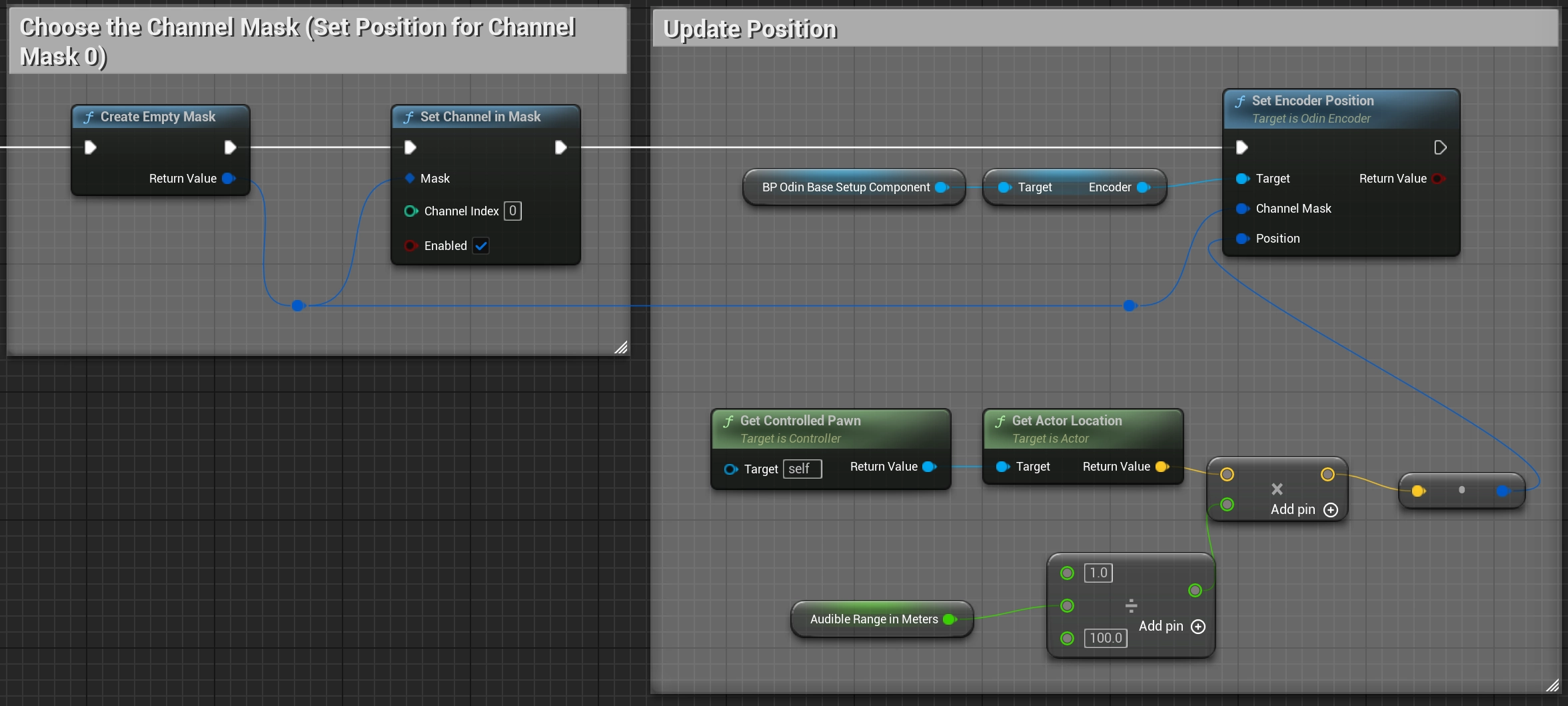
- Make sure to use the correct Channel Mask for updating your position. By default, Encoders will use Channel Mask
0. You can build up the correct Channel Mask with a call toCreate Empty Maskand usingSet Channel in Maskcalls to select the active channels. Your setup could look something like this:
- Invoking Set Encoder Position too frequently can lead to issues. Limit the frequency of calling
Set Encoder Positionto a maximum of 10 times per second. This equates to one update every 100 milliseconds. You can use Unreal's Set Timer by Event node to update the position in Odin rooms.
What if I do not want to have spatial audio, just like in my favourite conferencing software?
If you prefer a standard conferencing experience (where everyone’s voice is heard clearly at a consistent volume, regardless of their position in the game world), you should configure the audio to play in 2D mode. Unlike proximity chat, where you attach audio to specific character actors, conferencing audio should be attached to the Local Player Controller or UI. This ensures the audio is treated as globally audible sound rather than a proximity sound.
For more details on forcing audio to play as a 2D non-spatialized source, please refer to the Unreal Engine Audio Documentation.
How can I change the volume of the Odin Voice Chat in Unreal?
There are multiple approaches to regulate the Odin Voice Chat Volume in Unreal:
- Using the
Gain Controllersetting when configuring the Odin APM Settings. When enabled, the gain controller will automatically bring the signal to an appropriate range. This means input signals with low volume will be amplified and high volume will be limited. - Using Unreal Engine's Volume settings to regulate playback volume. You can either use the
SetVolumeMultiplierfunction onOdyinSynthComponents directly, or create an Unreal Sound Class and apply it to the relevantOdinSynthComponentobjects. Sound classes allow easy Volume control over a specific group of Synth / Audio Components.
My issue is not listed in the FAQs, what should I do?
If you encounter an issue with your project that isn't covered in our FAQs, here are some troubleshooting steps you can try before looking for further assistance:
Recommended Troubleshooting Steps:
- Delete Intermediate Folders: This can resolve issues caused by corrupted files. Close Unreal Engine, navigate to your project directory,
and delete the
Binaries,Build,DerivedDataCache, andIntermediatefolders. If Odin is installed in the project, navigate to the Plugin directory ([Project Path]/Plugins/Odin) and delete theBinariesandIntermediatefolders. - Regenerate Visual Studio Project Files (for C++ projects): Right-click your
.uprojectfile and select "Generate Visual Studio project files". - Install the Plugin Directly in the Project: We recommend installing the Odin plugin directly in your project. This approach enhances compatibility and ensures that the plugin is included in your source control, making it available to all project members. To install the plugin in your project:
- Download the latest plugin version for your Unreal Engine version from Odin SDK Unreal Releases.
- Extract the plugin into your project's
Pluginsfolder. If this folder does not exist, create it. - Restart Unreal Engine and enable the plugin through the 'Plugins' menu.
Further Assistance:
If the issue is still present after following the above steps, you can ask for further assistance through our Discord:
- Join Our Discord: Join here if you're not already a member.
- Post in the Support Channel: Navigate to the
#odin-unrealchannel and describe your issue. Include the following: - A detailed description of the problem.
- Any relevant screenshots or error logs.
- The Odin plugin version and the Unreal Engine version used in your project.
- Steps you have already tried.
Our community and support team will then take a look at your request and help you as quickly as possible. Thank you for your patience!